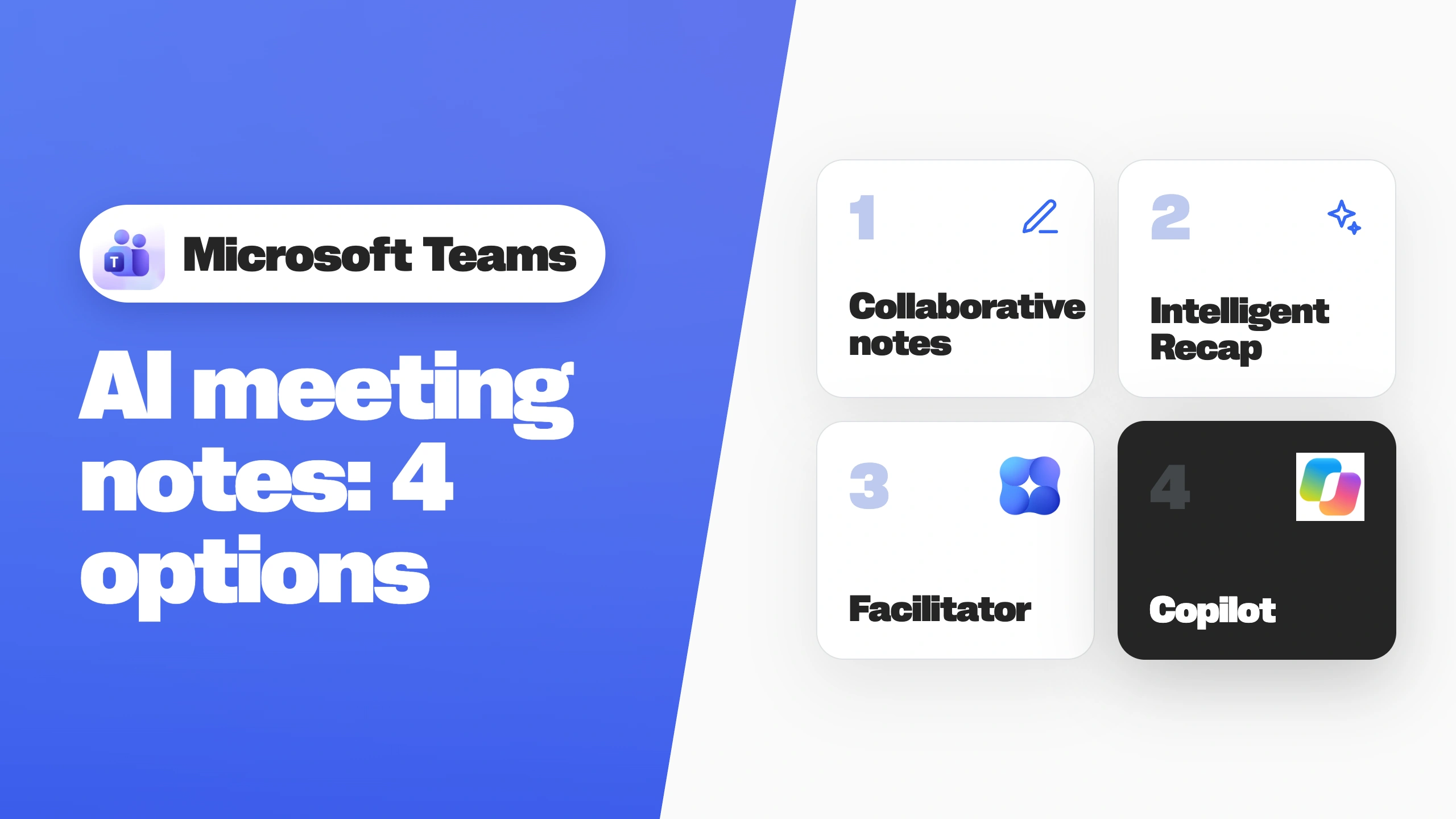
Microsoft Teams AI meeting notes aren't a single feature. You can take Teams meeting notes manually with collaborative notes or use three AI options: Intelligent Recap for after-meeting summaries, Facilitator for live notes, and Copilot for answers on demand.
Not sure where to start? Here's how to choose an option that fits your needs and access your notes afterward.
Microsoft Teams AI Meeting Notes: How They Compare
Manual notes need no additional AI license. The other options require Teams Premium or Microsoft 365 Copilot.
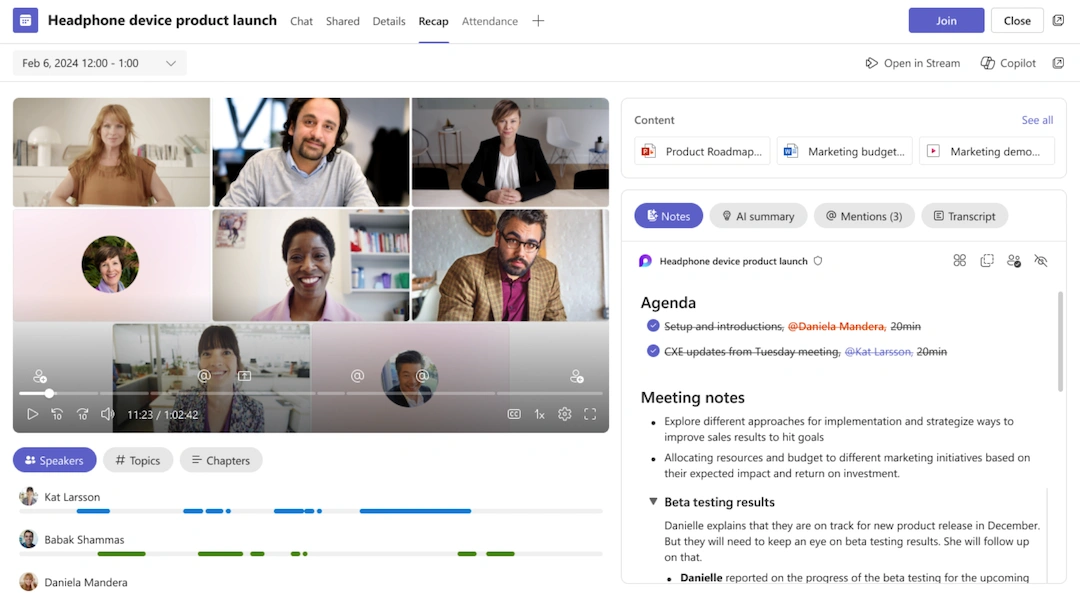
Recap is where Teams keeps materials from past meetings. With Intelligent Recap, you also get an AI summary. Facilitator adds live notes under Notes, while Copilot has its own pane where you can ask questions about the meeting. You can still open Recap even if AI notes aren't available.
How to Take Teams Meeting Notes Manually
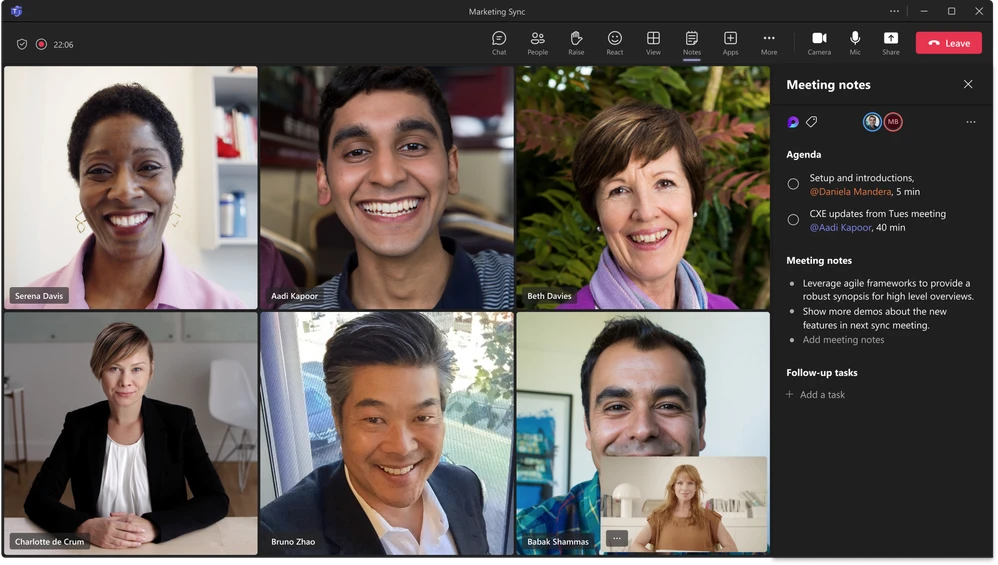
Microsoft Teams includes collaborative meeting notes powered by Loop. Participants can prepare an agenda, write notes together, and assign follow-up tasks without an additional Copilot subscription.
Unlike AI-generated notes, this option doesn't listen to the conversation. Someone has to write down the important details.
Add Meeting Notes Before the Meeting
You can create a shared agenda when scheduling a Teams meeting.
- Open Calendar in Microsoft Teams.
- Select New to schedule a meeting.
- In the meeting details, select Add an agenda.
- Enter agenda items, notes, or tasks.
- Select Send to invite participants.
Invitees can see the agenda and contribute before the call begins.
For an existing meeting, open it from your Teams calendar and select Add an agenda if notes haven't been created yet. You can also update an existing agenda.
Teams saves your changes automatically. For recurring meetings, select View series to update all future meetings, or open a single meeting to change only that occurrence.
Take Collaborative Notes During a Meeting
When the meeting starts, you can keep notes open alongside the conversation.
- Join your Microsoft Teams meeting.
- Select Notes in the meeting chat or More actions → Notes in the meeting controls.
- Add agenda items, discussion notes, decisions, or tasks.
- Use @mentions to assign an agenda item or task to a meeting participant.
Everyone with access can see changes in real time. You can also open the notes in a separate window for more room.
For example, during a project review, one participant can record the agreed launch date while another adds tasks needed before release.
If you regularly write meeting minutes in Teams, a consistent meeting notes template makes the information easier to scan afterward.
Find and Edit Notes After the Meeting
Teams saves collaborative notes automatically, so you don't need to export them when the meeting ends.
- Open Teams Calendar and select the past meeting.
- Expand the meeting details.
- Scroll to the notes section.
You can also open Recap → Notes from the meeting chat.
You can still edit meeting notes after the meeting, and everyone with access will see your changes. External guests can't view or edit them, even if they attended the meeting.
How to Get AI Meeting Notes with Intelligent Recap
If you want automatic meeting notes in Teams, Intelligent Recap creates a summary and suggests follow-up tasks after the call. It's available with Teams Premium or Microsoft 365 Copilot.
What Intelligent Recap Includes
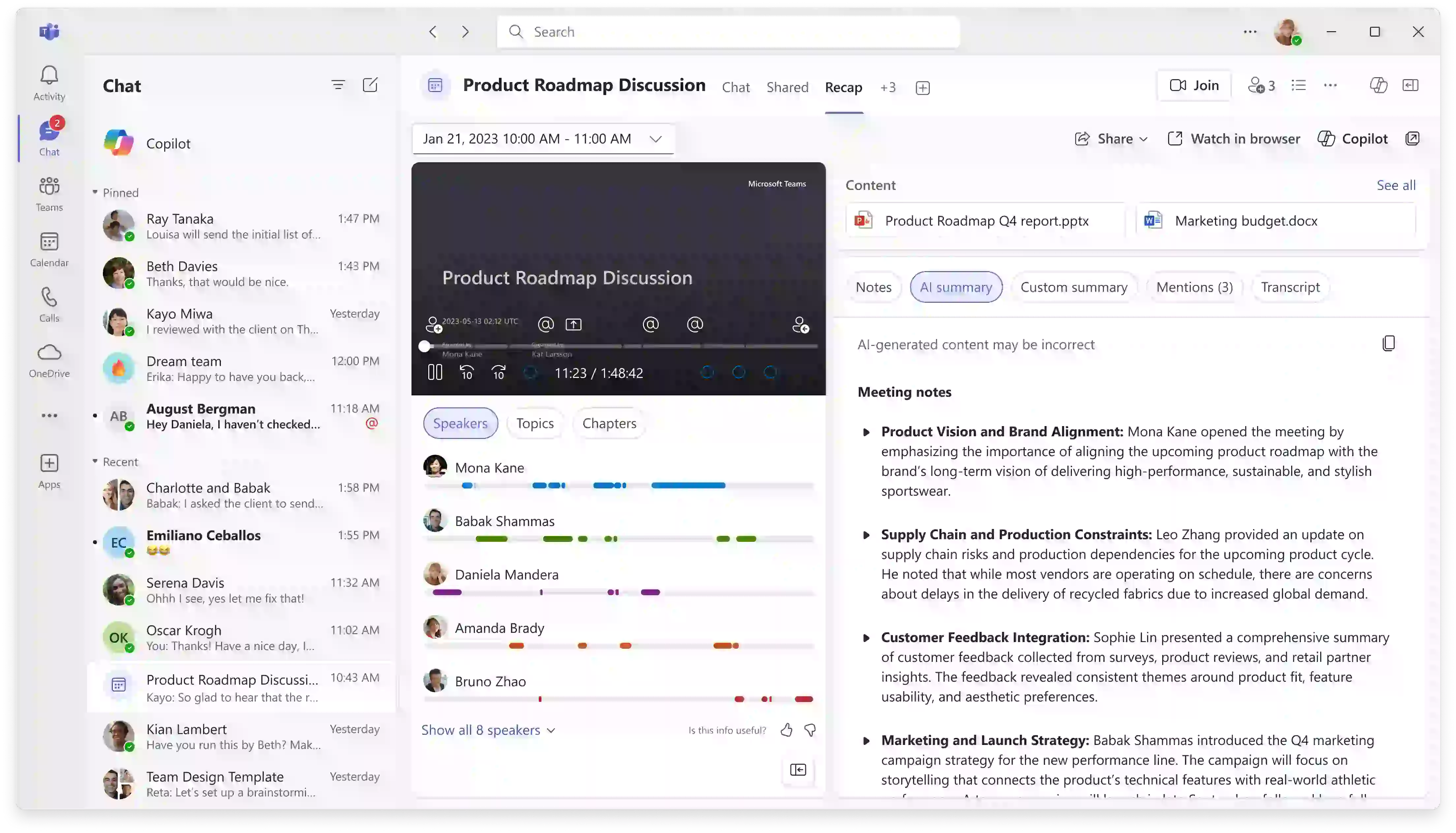
A regular Teams Recap can contain the recording, transcript, shared files, and notes. Intelligent Recap adds AI-generated information:
- AI summary: key discussion points organized into notes.
- Suggested tasks: follow-up items identified from the conversation.
- Speaker markers: sections showing when participants spoke.
- Timeline markers and chapters: shortcuts to parts of a recording.
Chapters require a recording; AI summaries don't.
How to Enable Intelligent Recap
For the standard transcription-based experience:
- Join a scheduled Microsoft Teams meeting.
- Open More actions → Transcribe → Start transcription.
- Confirm the spoken language.
- After the meeting, open its chat and select Recap.
- Select AI summary to review the notes and tasks.
The meeting must last at least five minutes. Microsoft currently lists 25 supported languages for Intelligent Recap.
You don't have to record a Teams meeting to get transcript-based AI notes. Transcription can run without saving video.
Microsoft also supports Intelligent Recap in certain scheduled meetings without saving a transcript or recording. You'll need Microsoft 365 Copilot and an enabled organizational policy.
Intelligent Recap Limitations
Having the Recap tab doesn't guarantee AI notes. You need Teams Premium or Microsoft 365 Copilot, and administrators can restrict access.
AI notes might not appear if the meeting is too short or doesn't meet the language or transcription requirements. External guests can't open AI recaps by default. If sharing is allowed, you can still email them the AI summary and follow-up tasks through Outlook.
How to Take Live AI Notes with Teams Facilitator
Teams Facilitator creates shared AI notes during a meeting and tracks the agenda.
What Facilitator Does During Meetings
It captures decisions, follow-up tasks, and open questions. You can add an agenda before the call or provide it in the meeting chat; Facilitator then tracks progress during the discussion.
Notes don't appear instantly; Facilitator takes a few minutes to start showing them.
How to Turn On Facilitator
You need a Microsoft 365 Copilot license to enable Facilitator.
- Open Teams Calendar and create a meeting.
- Select Options → Copilot and other AI.
- Set Allow Copilot and Facilitator to Only during the meeting or During and after the meeting.
- Turn on the Facilitator toggle.
- Select Apply.
You can also turn it on during an eligible meeting through More actions → Turn on Facilitator.
Organizers and presenters can turn Facilitator on or off in the Teams desktop or web app. Other people in your organization can read the notes without a Copilot license. To stop AI note-taking, select More actions → Turn off Facilitator. Already generated notes will remain available.
Where Facilitator Notes Are Saved
Facilitator saves AI notes in a Microsoft Loop page connected to the meeting. Afterward, open the meeting chat and select Recap → Notes to review or edit them.
Facilitator works in scheduled Teams meetings, but not instant or channel meetings, calls, or town halls. Town halls can use Intelligent Recap instead. External guests can't access Facilitator's notes.
For in-person meetings, Microsoft offers separate Facilitator features in Teams Rooms and the mobile app.
Facilitator can run without saving a transcript during the call. Transcription supports later Q&A about what was said.
How to Generate Meeting Notes with Microsoft 365 Copilot
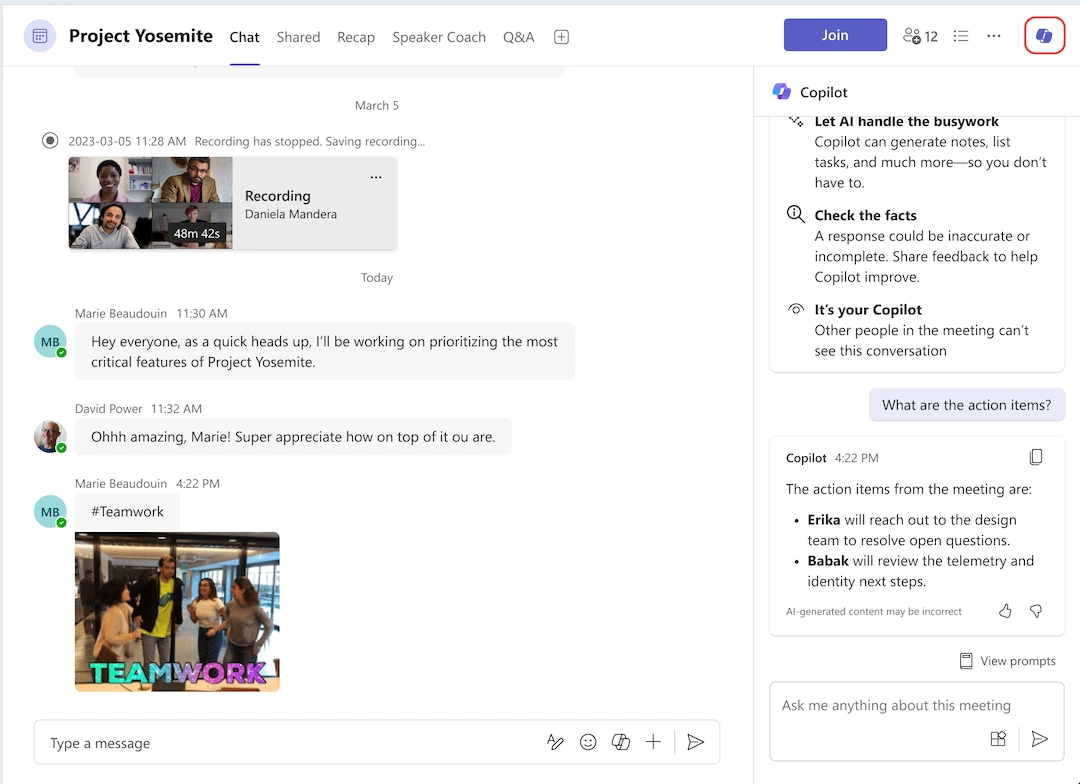
Can Copilot take meeting notes? Yes, it generates summaries, decisions, and action items based on prompts. Copilot’s AI meeting notes are private to the person who prompts it, so unlike Facilitator’s shared page, teammates won’t see them unless you copy them out.
How to Generate Notes with Copilot
During a supported meeting, select Copilot from the meeting controls. You can ask:
- "Summarize the main decisions from this meeting."
- "List the action items and their owners."
- "What questions haven't been answered yet?"
If you want to generate structured notes afterward:
- Open the meeting chat.
- Select Copilot.
- Select More prompts → Generate meeting notes.
- Review and copy the response as needed.
A Copilot conversation isn't automatically a shared notes document. Other participants won't see your private interaction unless you share its results.
Copilot Requirements and Limitations
You need a Microsoft 365 Copilot license to use Copilot in meetings. The organizer can also choose whether it works only during the meeting or afterward through Allow Copilot and Facilitator.
Copilot can work during a meeting without saving a transcript or recording. To ask about the conversation later, you'll usually need transcription, although some organizations support meeting memory without a saved transcript.
You can't use Copilot in meetings hosted outside your organization. What it can access also depends on the meeting settings and your permissions.
How Microsoft Teams Transcription Fits Into AI Notes
Microsoft Teams transcription records speech, speakers, and timestamps without an extra Copilot license, if your organization's policy permits it. A transcript shows what people said, but it doesn't summarize the meeting.
To create one, join the call and select More actions → Transcribe → Start transcription. Confirm the spoken language. After the meeting, open Recap → Transcript. Organizers and co-organizers can download the text as a .docx or .vtt file by default.
To convert a Teams transcript to meeting notes without an AI license, download it, extract decisions and tasks, and paste them into collaborative notes.
Teams usually uses a transcript for Intelligent Recap and to answer questions in Copilot or Facilitator after a meeting. But live AI features can work without saving one. Some meetings with Copilot can also generate a recap without a saved transcript.
To stop capturing, select More actions → Transcribing → Stop transcription. It doesn't erase what was already captured or delete existing AI notes.
Where Are Microsoft Teams Meeting Notes Saved?
Where to find meeting notes in Teams depends on the feature:
- Collaborative notes: shared Loop content in Teams Calendar, meeting details, or Recap.
- Intelligent Recap: AI summary in the meeting's Recap tab, subject to retention policies.
- Facilitator: shared Loop notes accessible through the meeting chat and Recap.
- Copilot: responses in your Copilot conversation; eligible meetings also support access through Recap.
Meeting notes are separate from recordings and transcripts. If you need the video, where Teams recordings are saved depends on the meeting type. You'll usually find it in OneDrive or SharePoint.
Can Everyone Access Teams Meeting Notes?
No. People in your organization may have access to shared notes and AI recaps, but external guests can't view or edit collaborative Loop notes. They also don't get AI recap access by default.
Recordings and transcripts have separate permissions, so check who can open them before sharing a link.
Why Are AI Meeting Notes Missing in Microsoft Teams?
Check Your License and Meeting Policy
Intelligent Recap requires Teams Premium or Copilot; Facilitator and the Copilot pane require Copilot. If an AI toggle is missing, ask IT to check meeting policies.
Check Transcription and Meeting Requirements
For standard Intelligent Recap, check the five-minute minimum, language, and transcription policy. For Facilitator, use a supported scheduled meeting and allow several minutes for notes to appear.
To turn off AI notes in Teams during a meeting, go to More actions → Turn off Facilitator. You can also control AI access before the meeting under Meeting options → Copilot and other AI.
Neither option deletes existing notes. To remove them, organizers or co-organizers can select Recap → More options → Delete recap content. Be careful: this permanently deletes the entire recap, not just the AI notes.
All four options have limits. Manual notes take time, AI features require paid licenses, and external guests may not have access. And if your meetings also happen in Zoom or Google Meet, platform support becomes an important difference between the best Microsoft Teams AI note takers.
When Bluedot Is a Better Option for Meeting Notes
Bluedot records Teams calls and generates transcripts and notes without a Copilot license. It works as a Microsoft Teams AI note taker without sending a meeting bot into the call. Other third-party tools add notes by joining as a participant instead, which is how Read.ai meeting notes in Teams often end up in calls the organizer didn’t expect.
Our Chrome extension records Teams meetings in a browser, while the desktop app works with the Teams application. Some of the best AI note takers save only a transcript when recording bot-free. Bluedot keeps audio and video too, depending on your setup.
Bluedot identifies speakers and pulls out decisions and action items. You can start recording yourself or set it to start automatically. Just make sure everyone knows they're being recorded.
Keep Notes Across Meeting Platforms
Bluedot works across all major meeting platforms, so your Teams, Zoom, and Google Meet meeting notes stay in the same workspace. You can also record in-person conversations using the mobile app or Apple Watch.
A lot of tools only save transcripts, but Bluedot keeps audio and video from supported online meetings without adding a bot.
You'll need to install the extension or desktop app, though. And the free plan includes just five recorded meetings in total.
Bottom Line
If your team can keep up with notes manually, Teams' collaborative notes may be enough. Intelligent Recap is useful when you want a summary afterward, while Facilitator and Copilot make more sense if you're already paying for Microsoft 365 Copilot.
But if your meetings happen across different platforms, Bluedot is a better choice. You can record Teams, Zoom, and Google Meet calls without adding a bot, keep the original audio and video, and check your AI notes against what was actually said. It also covers in-person conversations, so you don't need a separate tool for those.
You can try Bluedot for free without buying a Copilot license or changing how your team meets.
Frequently Asked Questions
Does Microsoft Teams have an AI note taker for meetings?
Yes. Intelligent Recap creates post-meeting summaries, Facilitator generates live notes, and Copilot produces notes on request. Each requires an appropriate paid license.
How do I turn on AI notes in Microsoft Teams?
To enable AI notes in Teams with Intelligent Recap, meet the licensing and transcription requirements. For Facilitator, use Meeting options → Copilot and other AI. Open Copilot from meeting controls if your account has access.
Can everyone see meeting notes in Teams?
No. Access depends on the note type and meeting permissions. External attendees can't access shared Teams collaborative notes, and AI recap access is also restricted.
Do external attendees get the Teams AI recap?
Generally, no. External guests don't automatically receive Intelligent Recap access. Microsoft also supports sharing recaps with specified external attendees through Outlook when permitted. That differs from granting every guest access to the Teams Recap tab.
Is Microsoft Teams Intelligent Recap the same as Copilot?
No. Intelligent Recap generates notes and tasks after meetings. Copilot answers questions or creates notes based on your prompts. Both may be available through a Microsoft 365 Copilot license.
Can I get AI meeting notes in Teams without Copilot?
Yes. Teams Premium includes text-based Intelligent Recap notes without a separate Copilot license. Facilitator and the interactive Copilot assistant still require Microsoft 365 Copilot.
Where are Microsoft Teams meeting notes stored?
Collaborative and Facilitator notes use Loop. Intelligent Recap appears in Recap, and Copilot responses are accessible in its interface. Recordings and transcripts follow separate OneDrive and SharePoint storage policies.
Can you automatically transcribe a Teams meeting without recording?
Yes. You can use Teams transcription without recording if your organization's policies allow it. Automatic transcription depends on the meeting configuration.