Bluedot Chrome Extension



How it works
Record and transcribe any virtual meeting in three clicks:

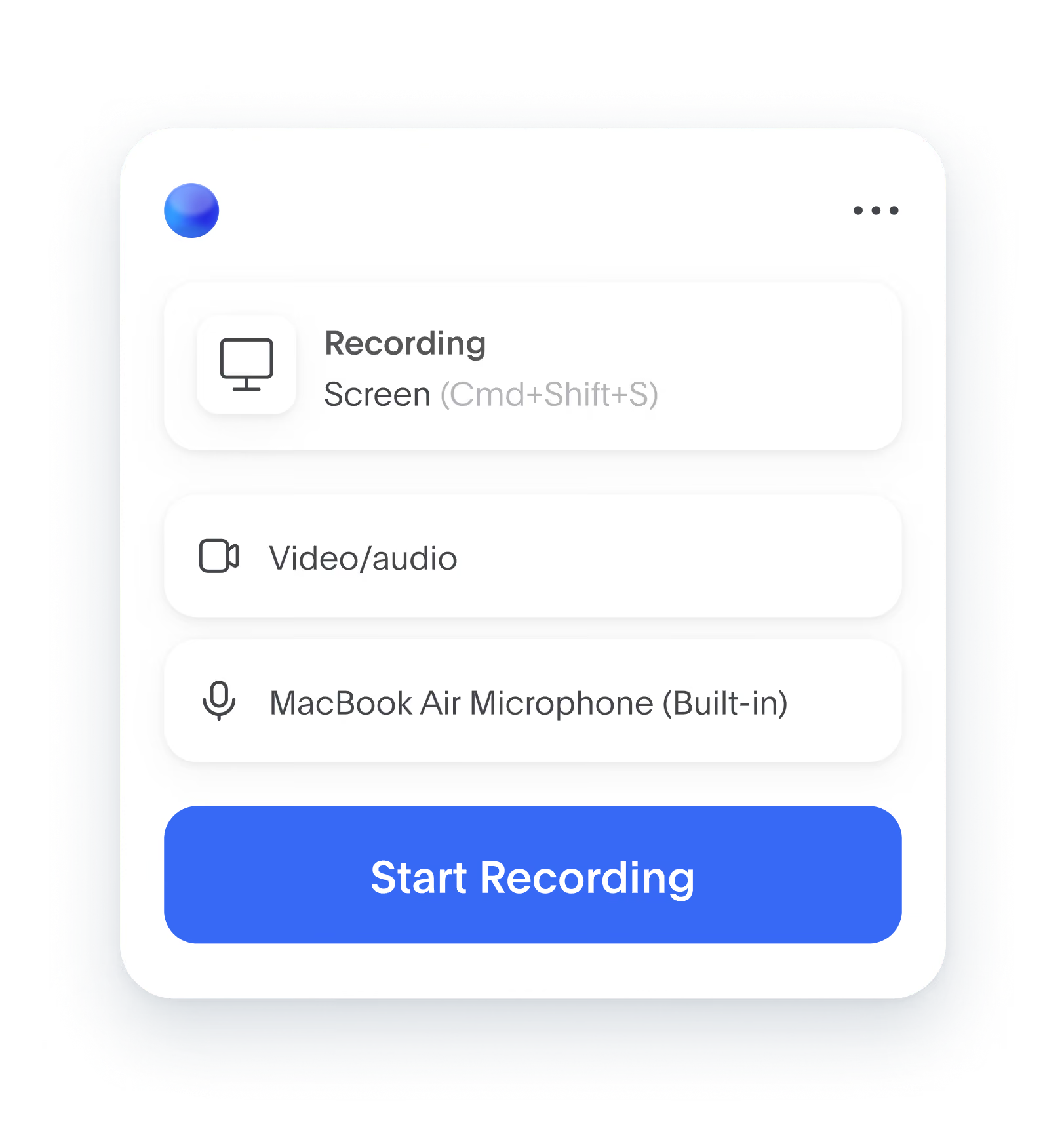
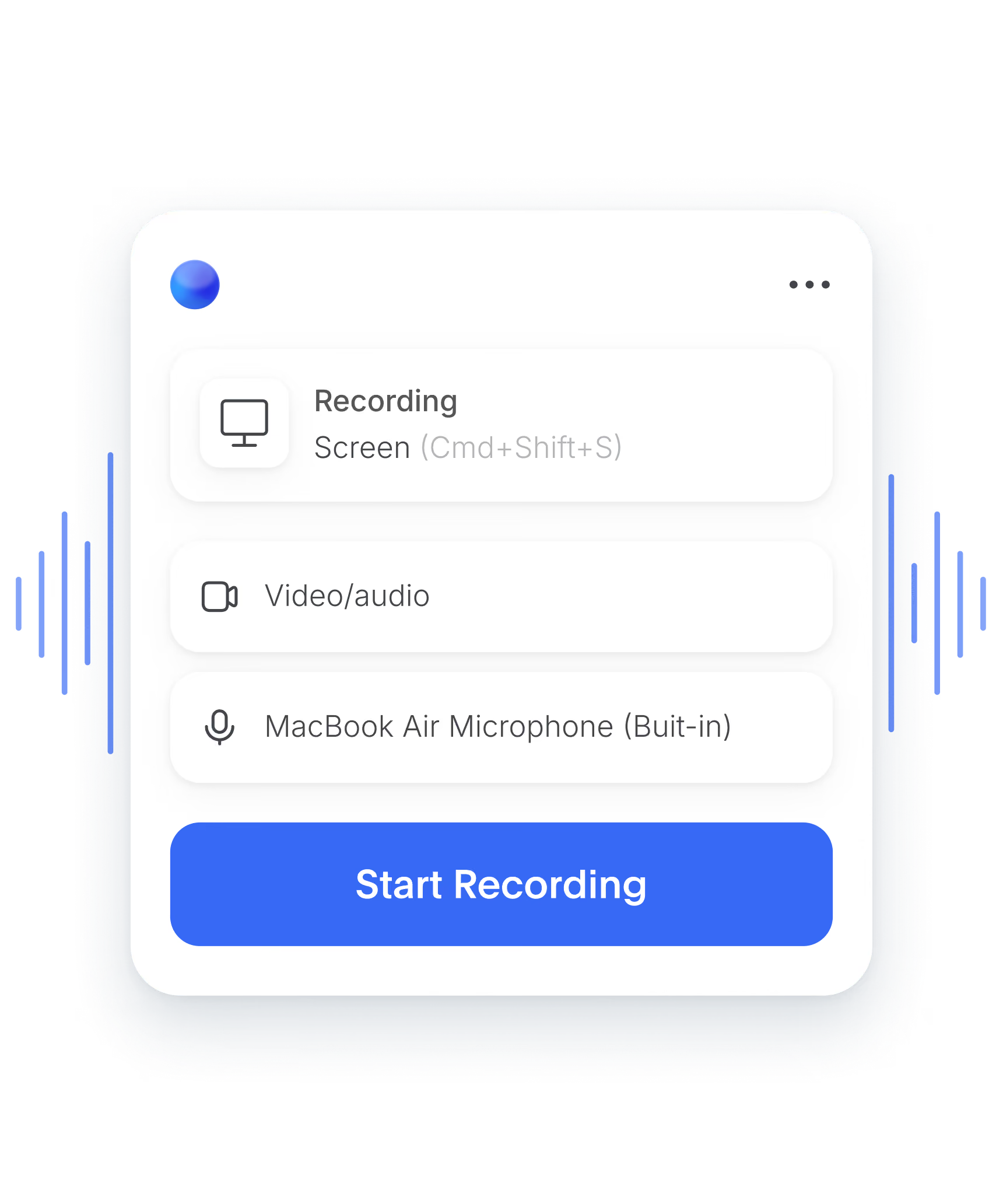
Open the Bluedot extension
From your Chrome toolbar.

Choose a recording mode
Audio and video, audio-only, or transcript-only.

Start recording
Click the blue button and have your meeting.
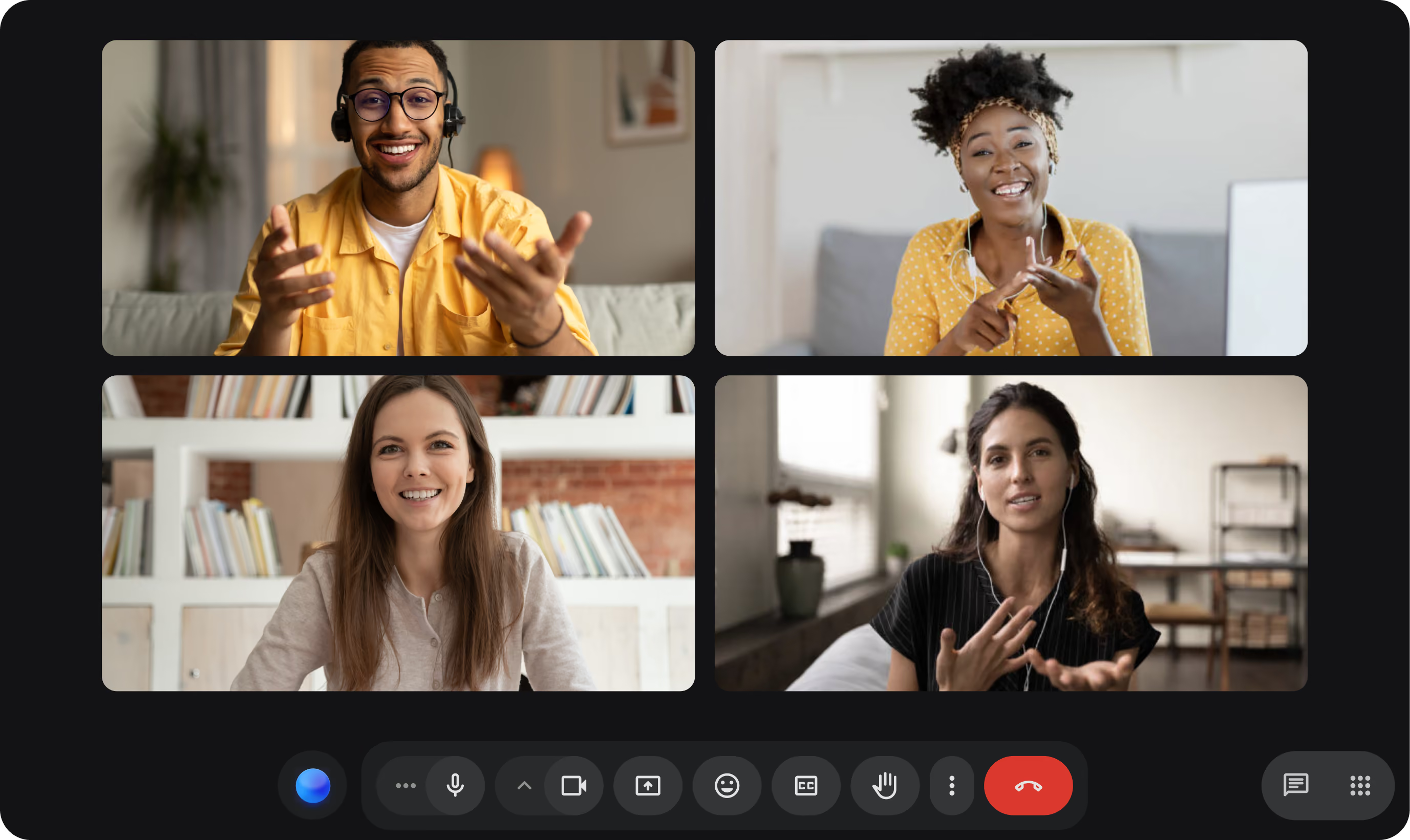
Focus on your call
Stay in the conversation. Don’t waste time on notes.
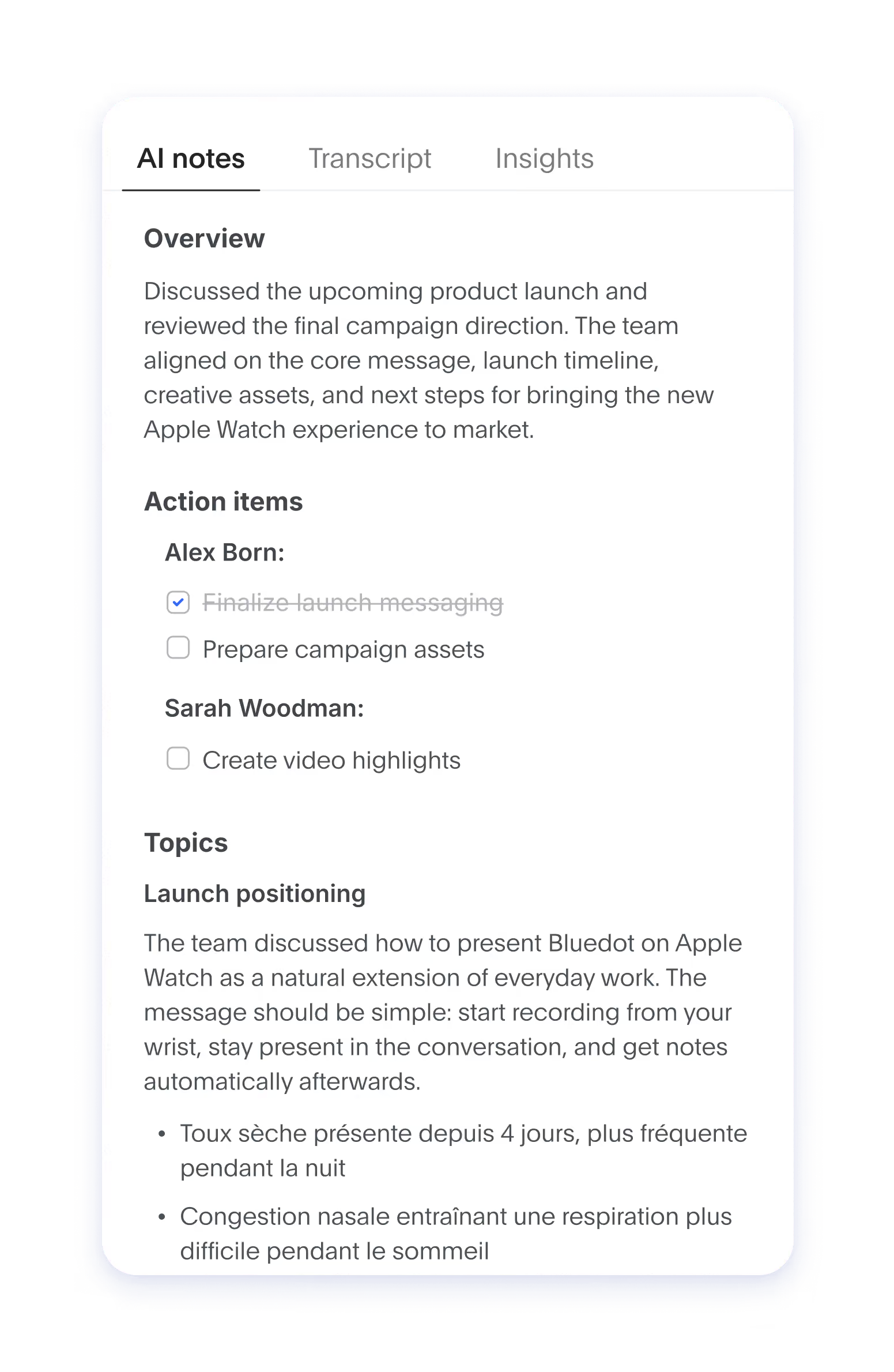
Bluedot handles the rest
Get useful AI notes, HD recordings, and accurate transcripts after calls.

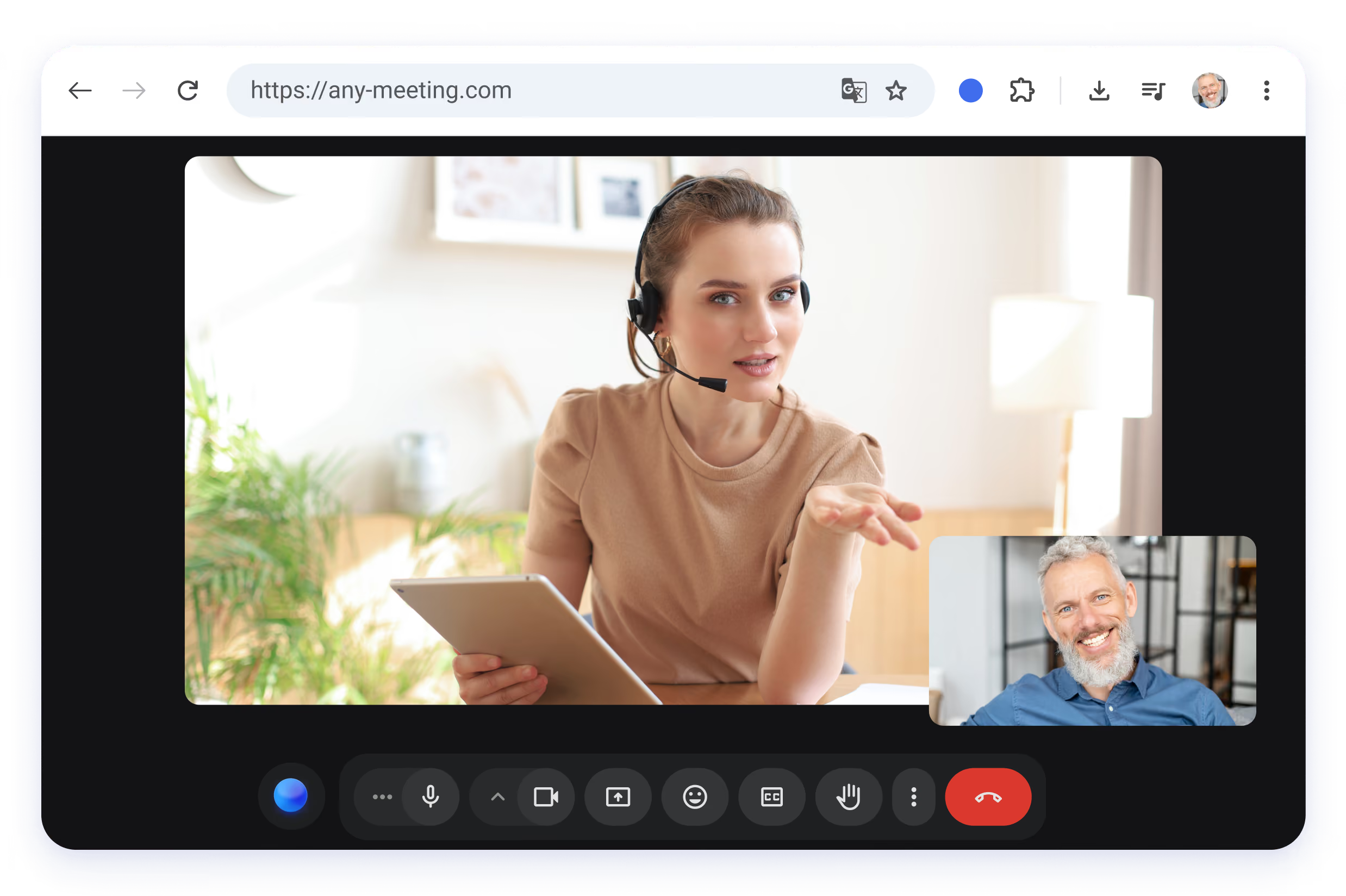
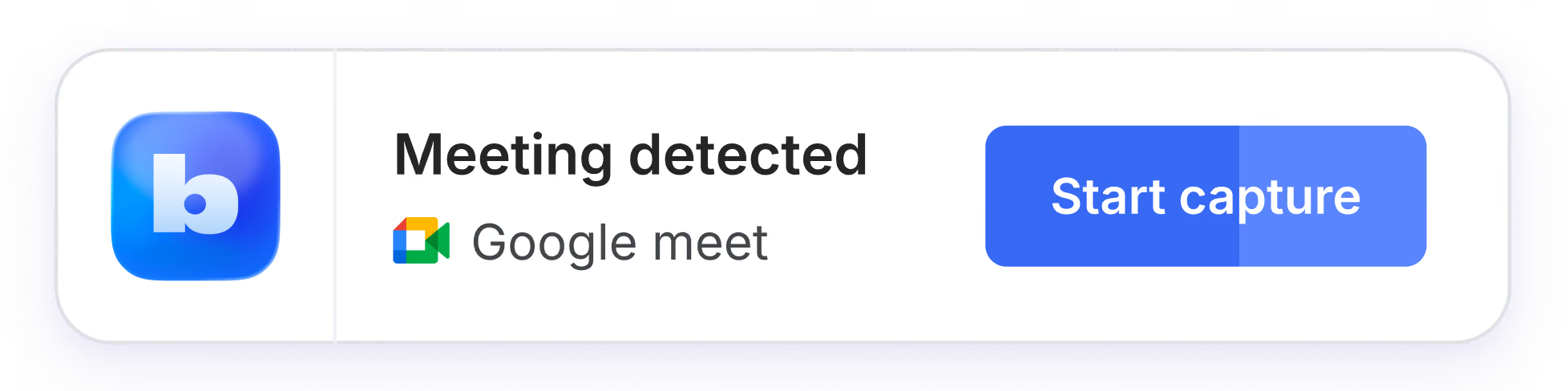
For every meeting in your browser





Bot-free Chrome recorder that syncs with all devices
One Bluedot account. Works everywhere.

Web app
Get all meeting data in one place.

Desktop
Record meetings on macOS and Windows.

Mobile
Capture in-person meetings on Android or iOS devices.

Watch
Start recording with one tap.
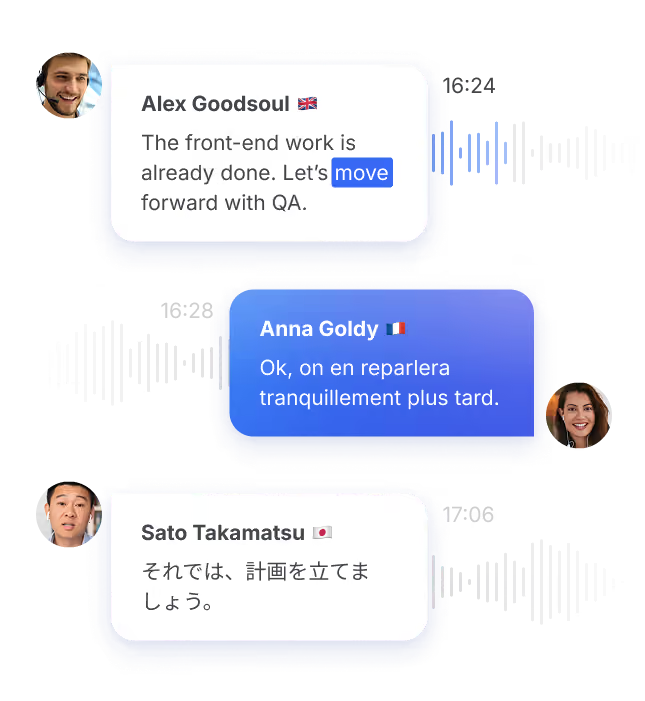
Always know who said what
Automatic speaker labeling for Google Meet and Microsoft Teams.
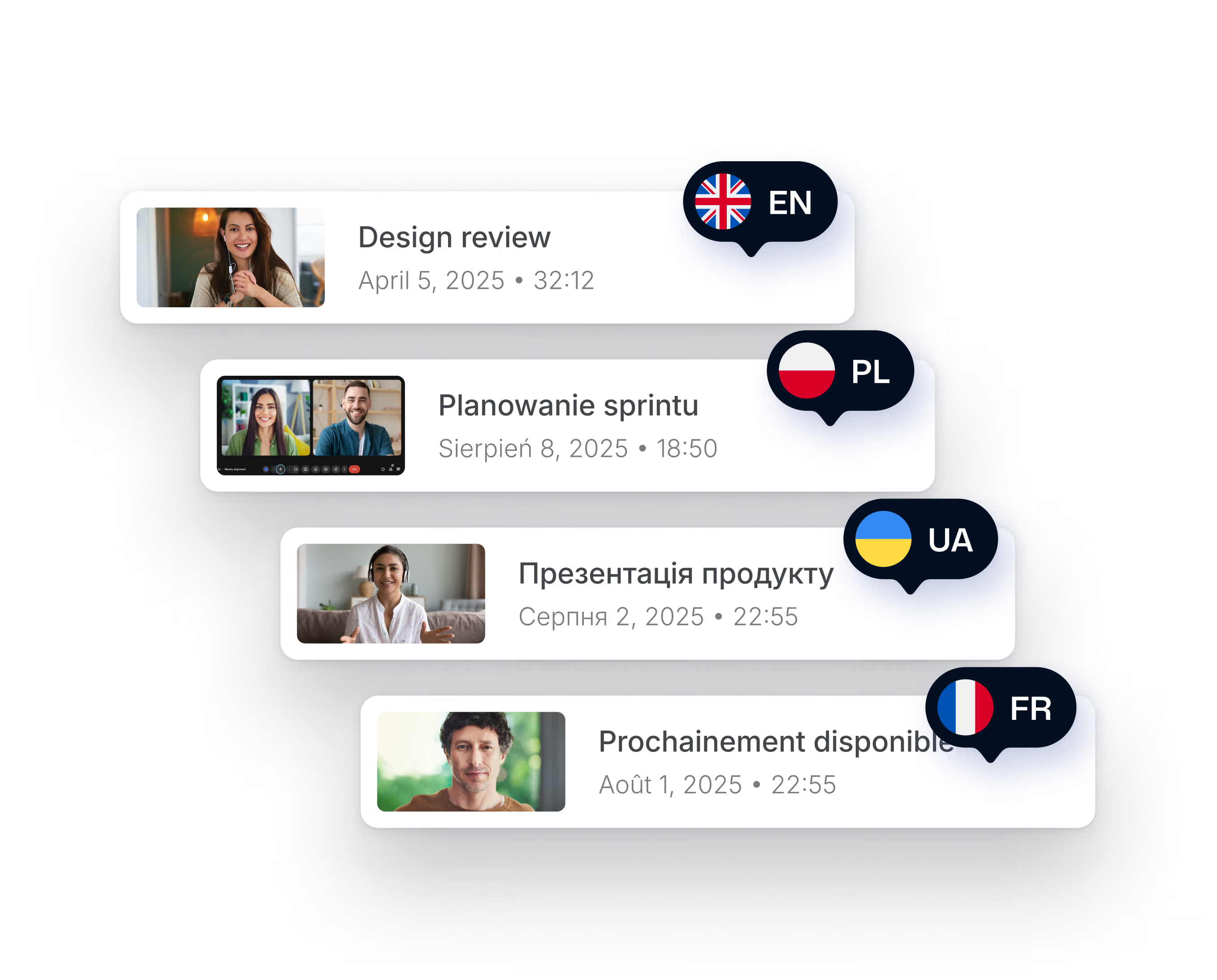
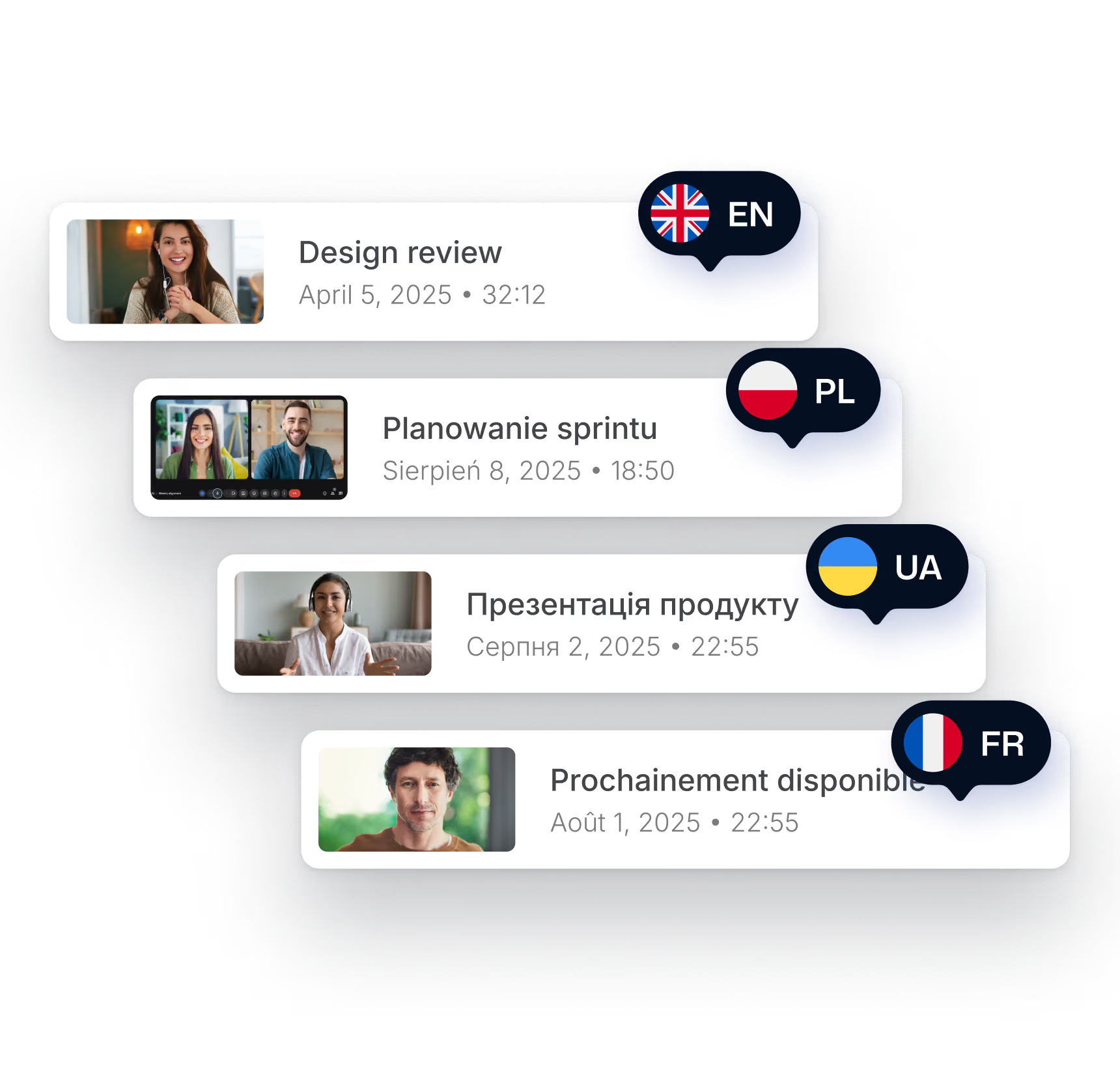
100+ languages
Multilingual transcription and AI notes in any language.
Handle consent your way
Toggle a recording notification on or off.
Auto-record on Google Meet
Optional, and off by default.
Sync with your favorite tools
Automatically fill out CRM and ATS fields. Send notes to Notion, Slack, and more.

Simple screen recorder for Chrome
Record talking-head videos outside of calls.
Easy approval for enterprise teams
SOC 2 Type II, GDPR, no AI training. No desktop install required.
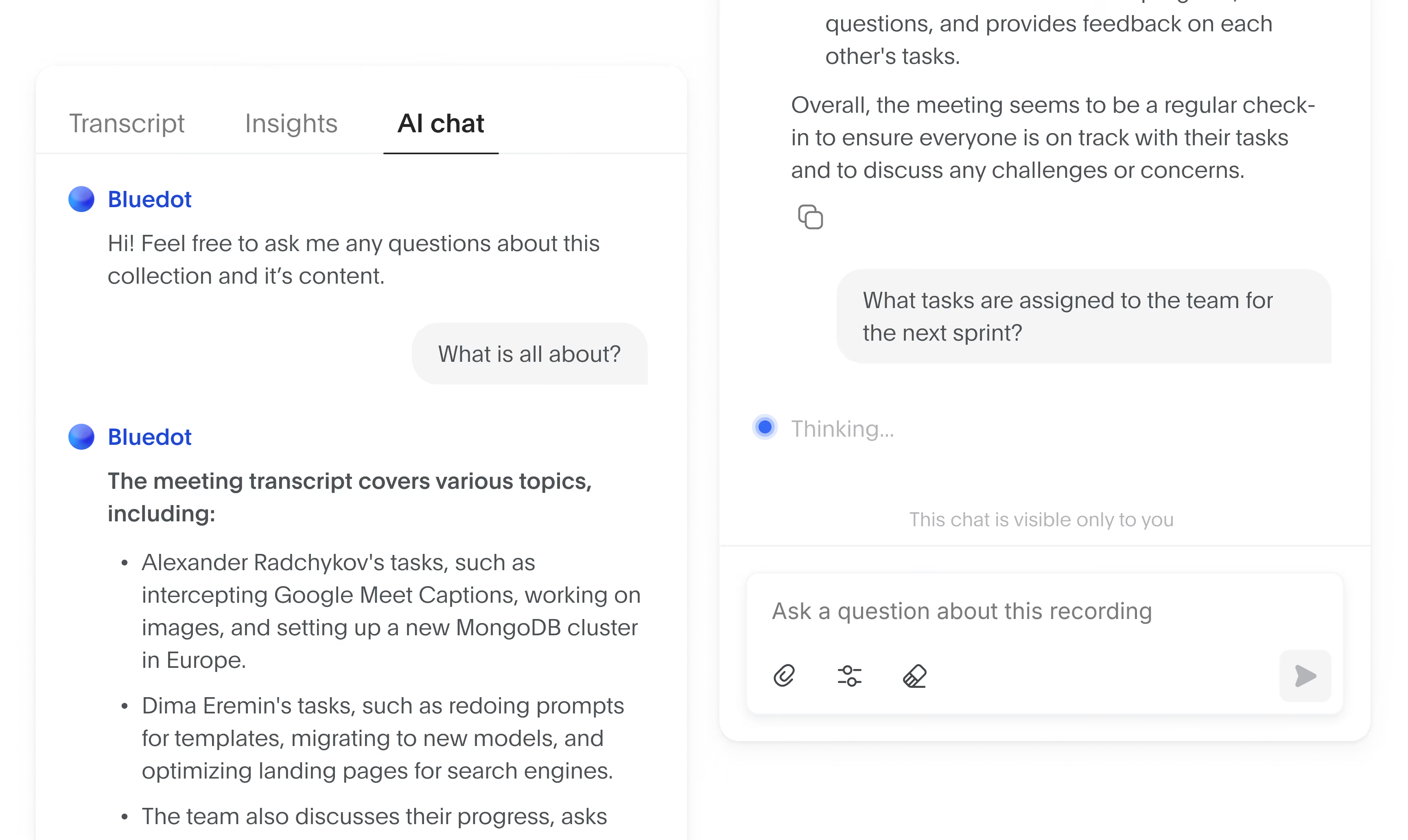
Talk to your meeting notes
Ask our AI chat anything about any meeting.

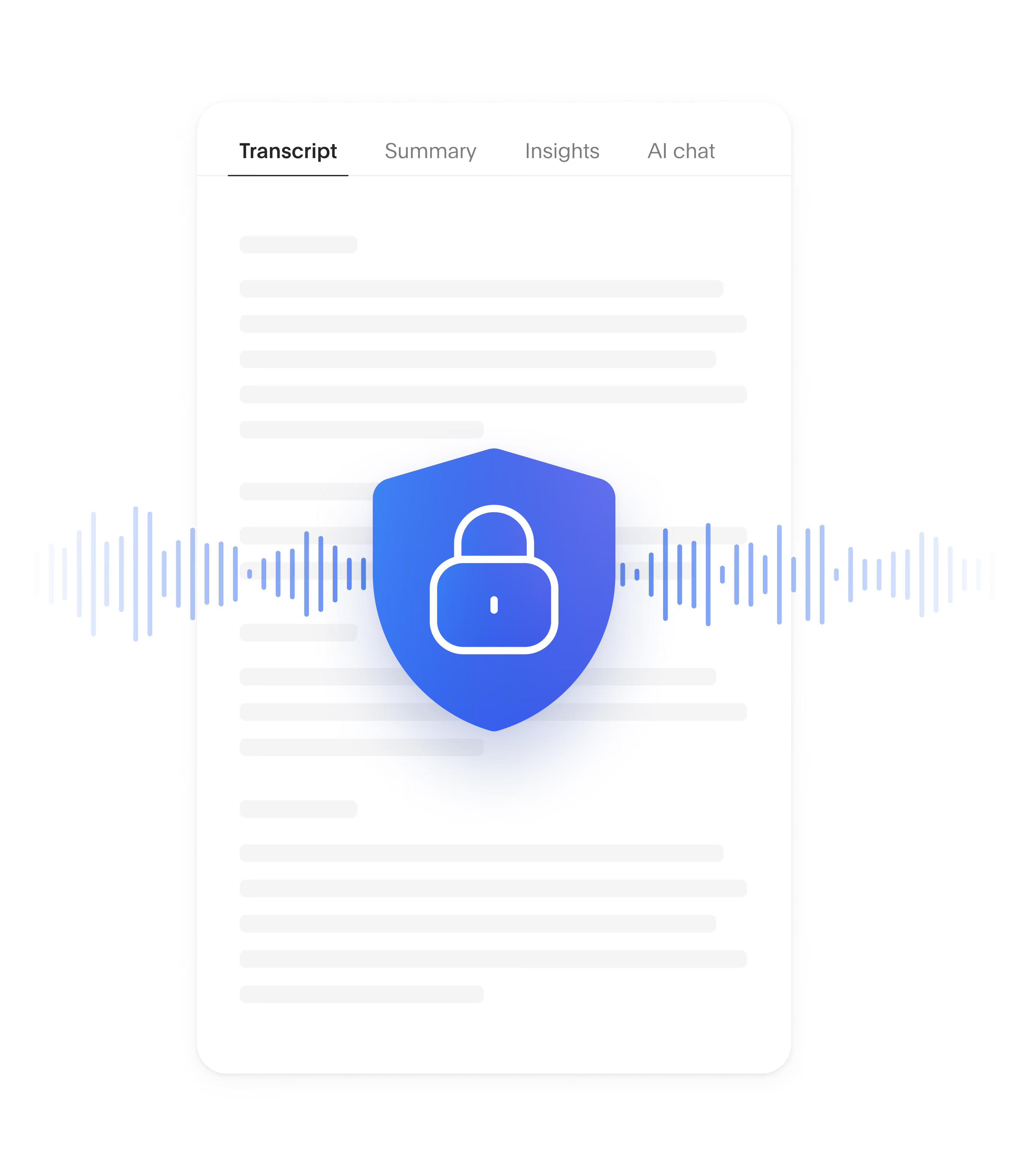
Security and privacy, built in
Here’s why legal, healthcare, and finance teams trust Bluedot.
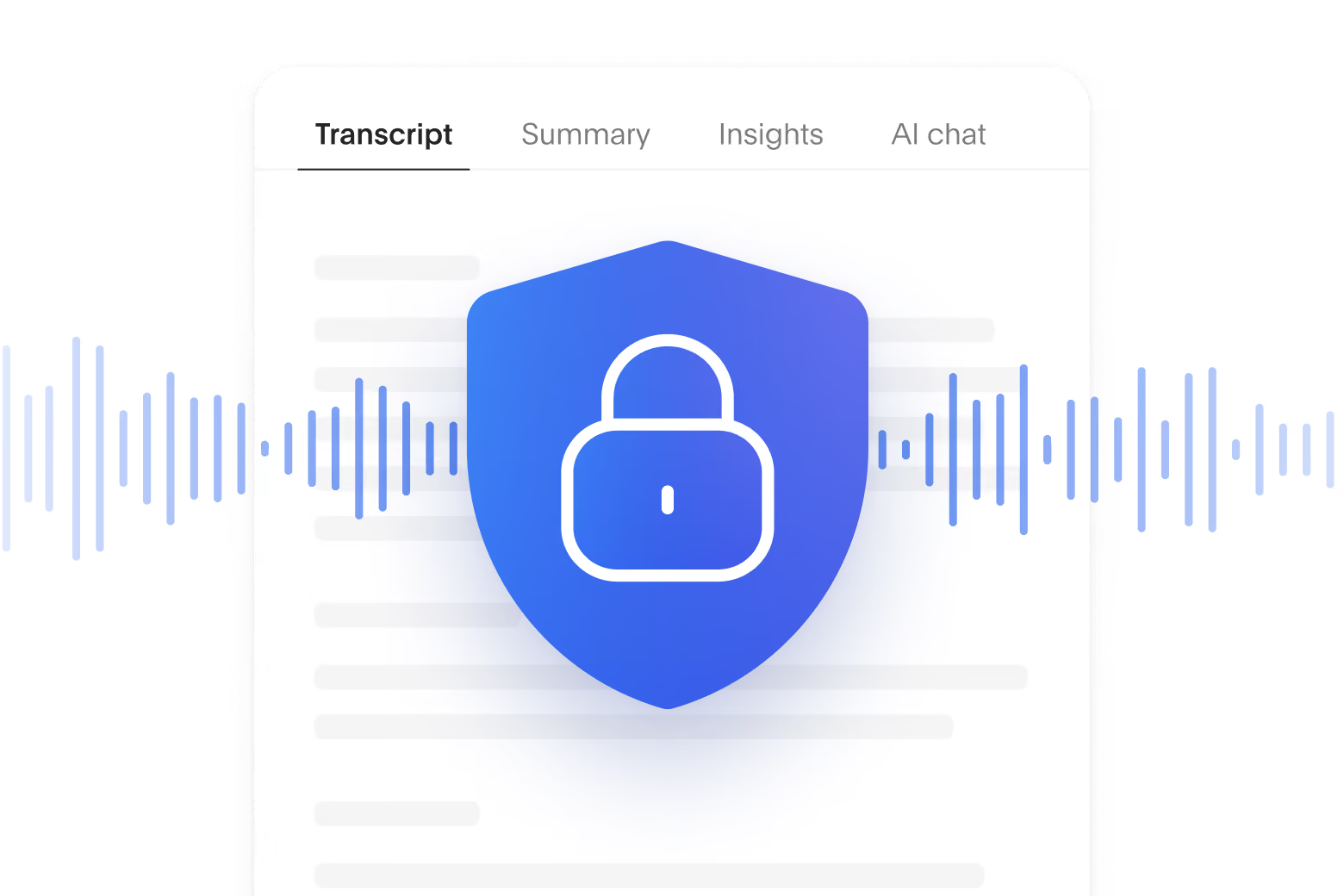


SOC 2 Type II
Independently audited controls for security, availability, and confidentiality.
GDPR compliant
GDPR-compliant controls and data processing.
Data encryption
Data is protected with AES-256 encryption and TLS.
No AI training on your data
Your meetings are never used to train or improve Al models.


Enjy Essam


Milana Kutlic

Dr. Terri Levine

Travis Hayden

Shahen Balyan

Olaf Biskupski
FAQs
What's the difference between the Bluedot Chrome extension and the desktop app?
Will other people know I'm recording?
How do I record audio from a Chrome tab?
Can I use Bluedot to record Loom style videos?
How to screen record on Chrome

Record every meeting. No bot on the call.
Add Bluedot to Chrome and record any meeting in your browser. Nothing joins your call, and you get a transcript, a recording, and notes when you’re done.