Microsoft 365 Copilot can take meeting notes in Microsoft Teams, but only with the right setup. A Copilot license gives you access, but you'll usually need transcription to ask about the discussion after the meeting.
A quick note: we're talking about Microsoft 365 Copilot in Teams meetings here, not GitHub Copilot, Copilot Notebooks, or Copilot in OneNote.
Let's take a closer look at how Copilot handles meeting notes in Teams, including what works automatically and what you'll need to set up yourself.
Can Copilot Take Meeting Notes in Teams?
Yes, but there isn't just one Copilot note taker. Microsoft offers three AI options, each with a different purpose.
Copilot Pane: Notes When You Ask
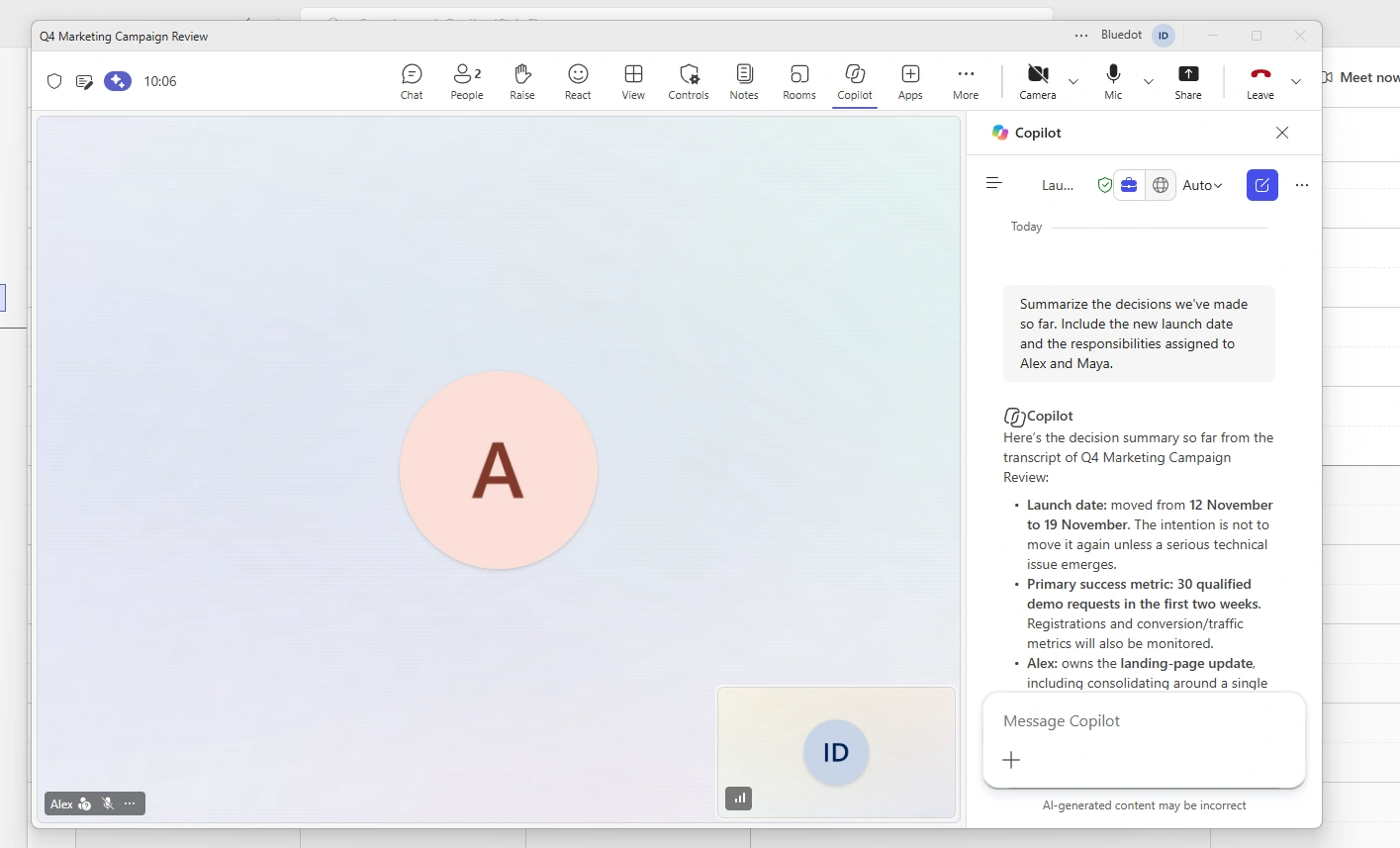
Open Copilot from the meeting controls to catch up on the discussion or ask about something a participant said earlier.
Your conversation with Copilot is a private chat. Other participants can't see your prompts or responses.
The Copilot pane doesn't automatically write a complete set of notes just because you've opened the pane. You need to ask for a summary of key points or select one of its suggested prompts.
Facilitator: Shared Notes During the Meeting
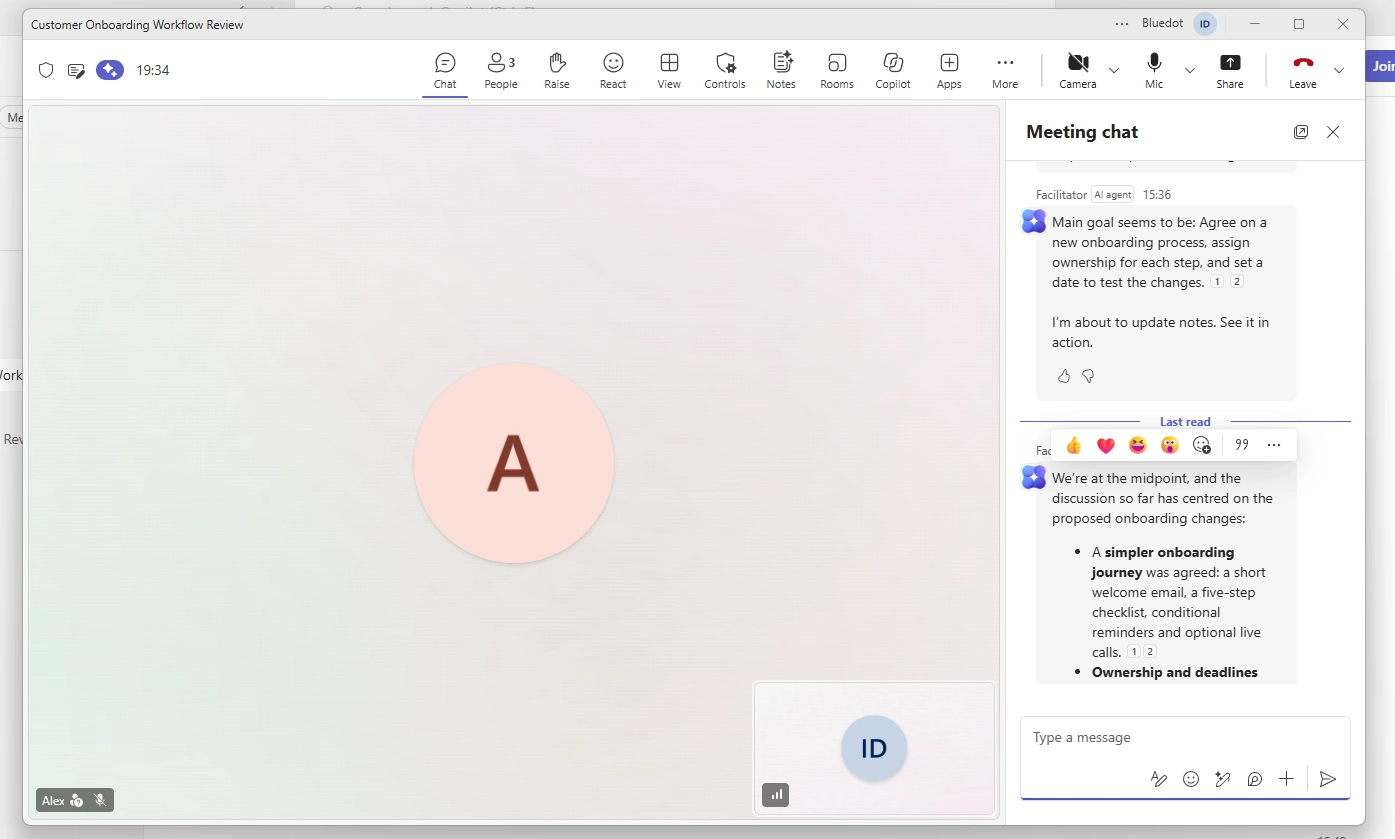
The more hands-off option. It creates AI notes as people talk, including key discussion points, decisions, and open questions.
Facilitator saves the notes in a Microsoft Loop page, where your team can review and edit them during or after the meeting. Teams Facilitator can also track the agenda to help keep the meeting on schedule.
You'll need a scheduled Teams meeting to use it. Facilitator doesn't work in instant meetings, channel meetings, or Teams calls. Someone with a Copilot license has to turn it on, but colleagues without one can still access the notes.
Intelligent Recap: Notes After the Call
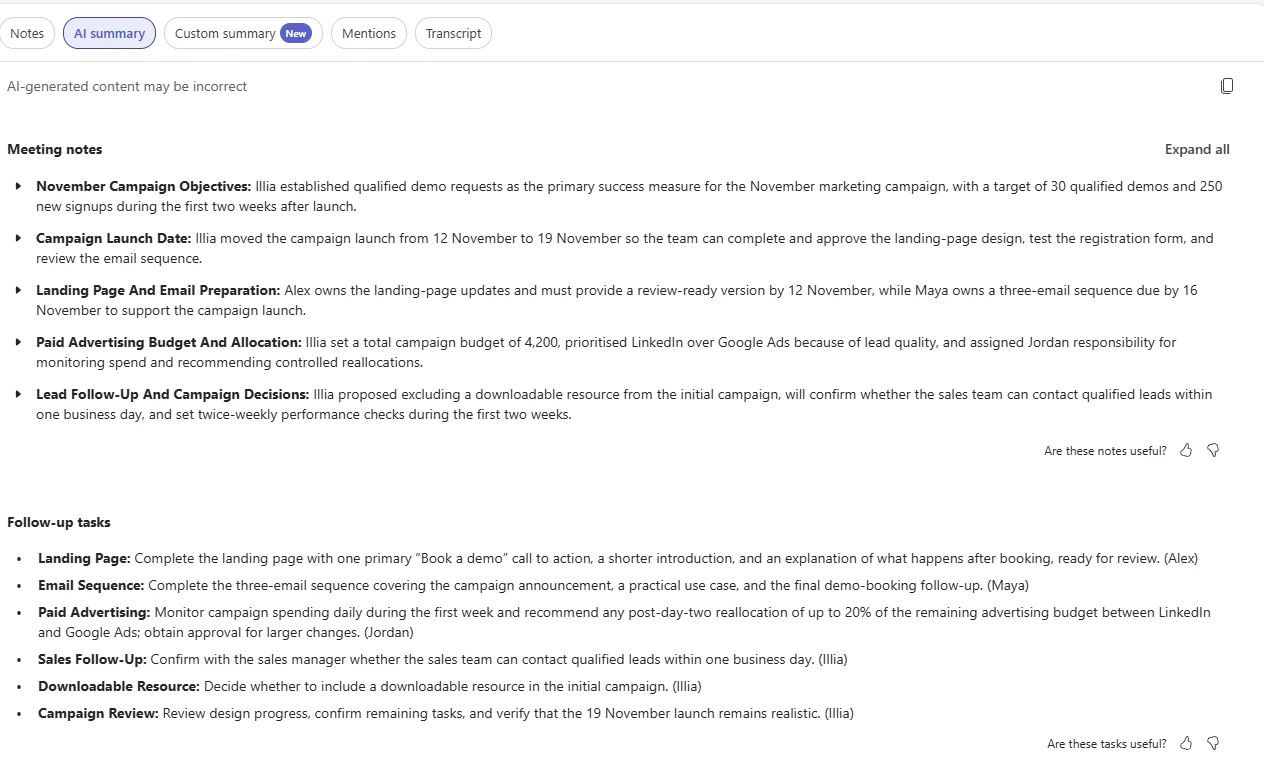
Intelligent Recap organizes the meeting's AI-generated notes and suggested tasks in the Recap tab. With recordings, you can also get timeline markers that help you find specific moments.
Unlike the Copilot pane, Intelligent Recap is available through Teams Premium as well as Microsoft 365 Copilot. So, you might already have access to some of these features, depending on your Microsoft 365 subscription.
What Do You Need for Microsoft Copilot Meeting Notes?
A license. You'll need Microsoft 365 Copilot to use the Copilot pane or Facilitator. Copilot Business normally costs $21 per user/month for companies with up to 300 users, while the enterprise version costs $30. Both require an eligible Microsoft 365 subscription, with prices based on annual billing. If you only need Intelligent Recap, Teams Premium is cheaper at $10 per user/month, billed annually.
Meeting permissions. The organizer controls Copilot under Meeting options → Copilot and other AI. They can allow it during and after the meeting, only during the meeting, or turn it off. Your IT admin can restrict these options, too. Facilitator also needs Loop enabled.
Transcription for the standard post-meeting Copilot experience. To use Copilot after the meeting, you'll need to have transcription turned on during the call. If you want to keep using it later, make sure Microsoft Teams transcription is enabled.
The meeting organizer can change Copilot settings without a license, but anyone who wants to use the Copilot pane needs their own. If you don't have one, some of the best AI note takers can record and summarize Teams meetings without a Copilot subscription.
How to Use Copilot to Take Notes in Teams
- Set up the meeting. Schedule a Teams meeting through Teams or Outlook. Open Meeting options → Copilot and other AI and choose During and after the meeting.
- Start transcription. When the meeting begins, select More (...) → Record and transcribe → Start transcription.
- Open Copilot. Select Copilot in the meeting controls, then choose a suggested prompt or ask something specific, like "What did [name] say about [topic]?"
- Enable Facilitator if you want shared notes. In a supported scheduled meeting, turn it on from meeting options or More (...) → Turn on Facilitator during the call.
- Find your notes afterward. If you used Facilitator or Intelligent Recap, open the meeting chat and select Recap. You can also open Copilot in Teams from the chat and select More prompts → Generate meeting notes.
If you want Copilot to identify task owners correctly, people should clearly state who's responsible for each follow-up. Check the AI-generated notes before sharing them, too. Copilot can still miss details or assign tasks to the wrong person.
Can Copilot Take Meeting Notes Without Recording?
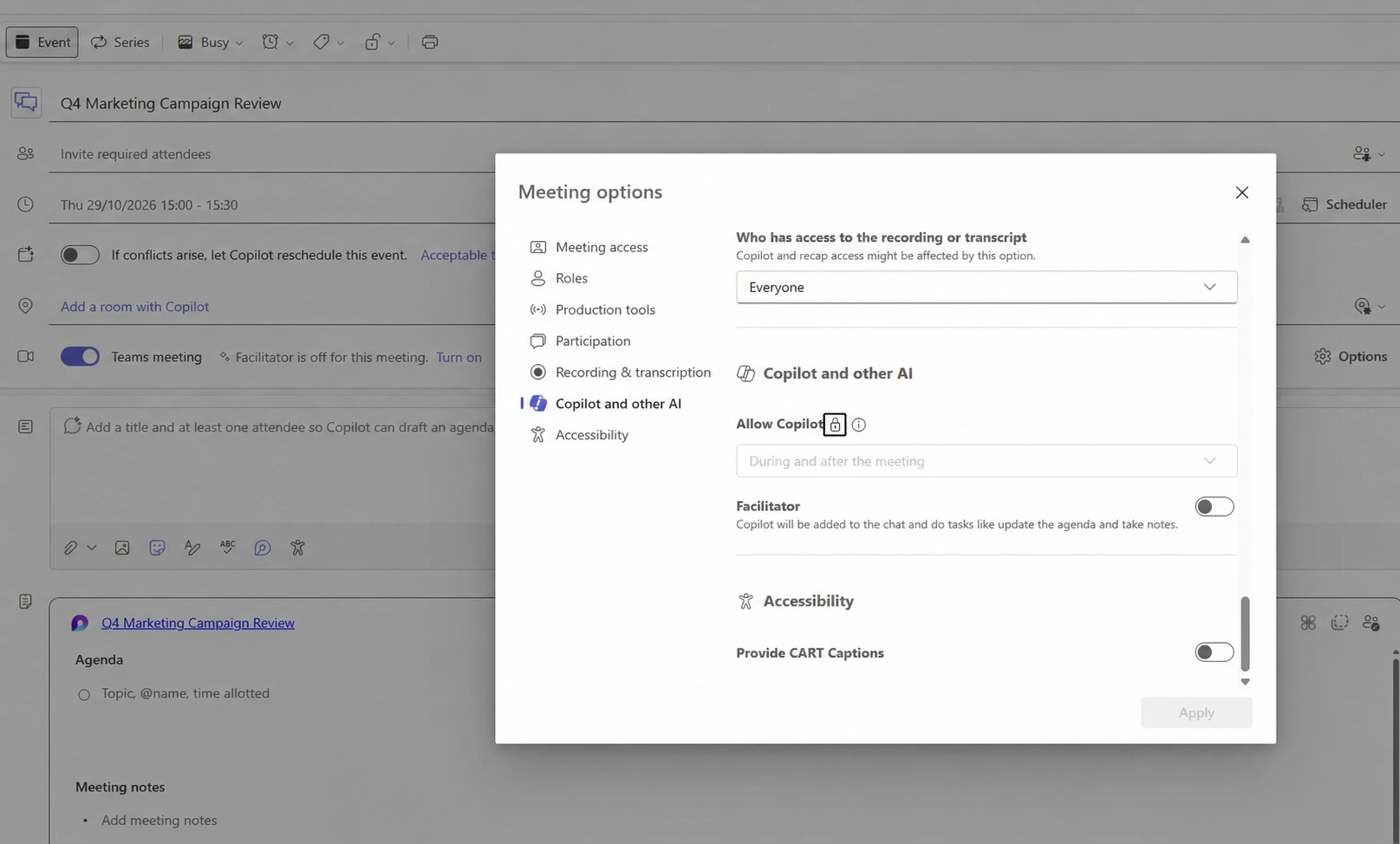
You can use Copilot without recording video, and even without enabling transcription.
With Transcription but No Recording
If you enable transcription without recording the meeting, Copilot can still use the meeting transcript to generate summaries and answer questions after the call.
This makes Teams transcription without recording useful when you want written meeting minutes but don't need video playback.
For the fullest recording-based recap, including the video and timeline features, you'll need to record a Teams meeting.
Without Recording or Transcription
Set Copilot to Only during the meeting. It can listen to the live discussion and answer questions without saving a transcript or recording.
Just remember, once the meeting ends, you lose access to the normal Copilot conversation about untranscribed spoken content. Copy any important answers before leaving.
Microsoft also lets you generate an Intelligent Recap without saving a transcript. It's available when your admin has Copilot enabled in your Teams meeting policy. The meeting organizer needs a Copilot license, and the feature only works with supported scheduled meetings. The summary is saved as a Word file in the organizer's OneDrive.
Where Copilot Meeting Notes Fall Short
Meetings hosted by another organization. If a client invites you to their Teams meeting, your Copilot license usually won't work there. Exceptions exist for companies with a multitenant setup, but IT admins from both organizations need to configure it.
Other meeting platforms. Copilot in Teams can't take notes during Zoom or Google Meet calls.
External guests. Even if they're invited, people outside your organization can't access your Intelligent Recap or Facilitator notes.
Unsupported meeting types. Facilitator doesn't work in instant or channel meetings. Other Teams AI features have different restrictions, so it depends on which one you're using.
Meetings with multiple languages. Facilitator takes notes only in the language selected when you turn it on.
In-person conversations. Facilitator supports some in-person meetings through Teams mobile, but this is a separate workflow.
You can find your recaps in Teams, but recordings are usually stored in OneDrive or SharePoint. Your meeting type affects where Teams recordings are saved, and your organization's retention policies determine how long they're kept.
Bluedot vs. Copilot: Which Is Better for Meeting Notes?
Copilot is a good option if your company already pays for it and most meetings happen internally in Teams. But things get complicated when a client hosts the call, or your next meeting happens on Zoom.
Bluedot doesn't have those restrictions. It's a secure, privacy-first AI note taker that records Teams, Zoom, and Google Meet directly from your device, without a Copilot license or a meeting bot. You also get the original recording alongside your transcript and AI notes, so you can check what was actually said.
Here's how they compare:
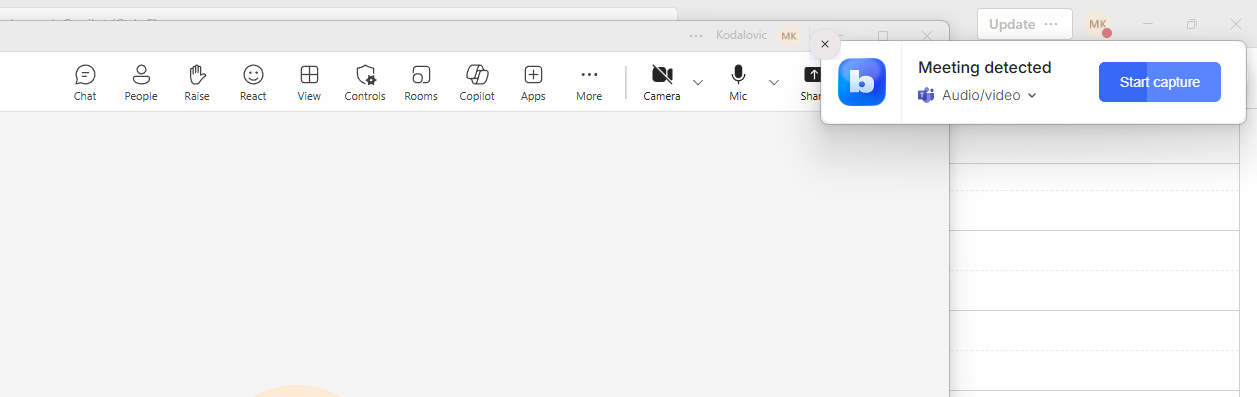
The recording method makes a difference, too. Some Microsoft Teams AI note takers join as bots that clients may need to admit or can block entirely. Bluedot's Microsoft Teams AI note taker records through a Chrome extension or desktop app instead. You can capture client-hosted meetings without asking the organizer to enable Teams recording. Just follow recording consent rules.
Bluedot records in person from your phone or Apple Watch (without requiring your iPhone nearby) and syncs everything to your Bluedot account, which you can access on any device. It's SOC 2 Type II compliant, follows GDPR, encrypts recordings and notes, and doesn't train AI models on your data.
Pro includes custom templates and unlimited video recording. Business adds CRM and ATS integrations. Five meetings are free. Bluedot is among Microsoft Copilot alternatives that don't require another Microsoft subscription.
What If You Don't Have a Copilot License?
Teams still has a few useful note-taking features if you don't have a Copilot license.
For example, you can use collaborative notes to write down decisions and assign tasks during a meeting. Everyone with access can edit these Microsoft Teams meeting notes, even after the call ends.
You can also turn on live transcription if your organization allows it. The transcript will be available in the Recap tab, along with any recordings and shared notes. You won't get AI-generated summaries, though, unless you have Teams Premium or Microsoft 365 Copilot.
Keep Your Meeting Notes in One Place
Microsoft 365 Copilot is useful if your team already works in Teams and has the right licenses. But once you start joining client-hosted meetings or using other platforms, its limitations become harder to ignore.
Bluedot works across Teams, Zoom, Google Meet, and in-person meetings without adding a bot to your calls. You get AI notes along with the original recording, so you can check the details whenever you need to. And you don't need a Copilot subscription to get started.
Frequently Asked Questions
Does Copilot have a note-taking tool for meetings?
Yes. The Copilot pane generates notes when prompted, Facilitator creates shared notes during meetings, and Intelligent Recap provides summaries afterward.
Is there an AI that can take meeting notes?
Yes. Copilot works inside Teams, while dedicated tools such as Bluedot, Otter.ai, and Fireflies.ai also support other meeting platforms.
Do you need a license for Copilot meeting notes in Teams?
Yes, for the Copilot pane and Facilitator. Teams Premium also includes Intelligent Recap. Manual collaborative notes don't need either AI add-on.
What is the difference between Copilot and Intelligent Recap?
Copilot answers questions and creates summaries on request. Intelligent Recap automatically organizes post-meeting notes and suggested tasks.
Do external attendees get the Teams AI recap?
Generally, no. External guests don't receive the same Copilot meeting minutes and AI recap access as eligible users inside the hosting organization.
How to use Copilot to take meeting notes without Teams?
The standard meeting version of Copilot doesn't record Zoom or Google Meet. Microsoft has separate in-person options, but a cross-platform AI note taker is more practical for other meeting apps.
Why didn't my Teams AI summary show up?
Check your license, meeting settings, and transcription. The meeting may also have been hosted by another organization, or Facilitator might not have been enabled.
Should a sales team use a separate note taker instead of Copilot in Teams?
Often, yes. Sales calls frequently happen on client-hosted Teams, Zoom, or Google Meet. A dedicated note taker can capture them and connect the notes to a CRM.