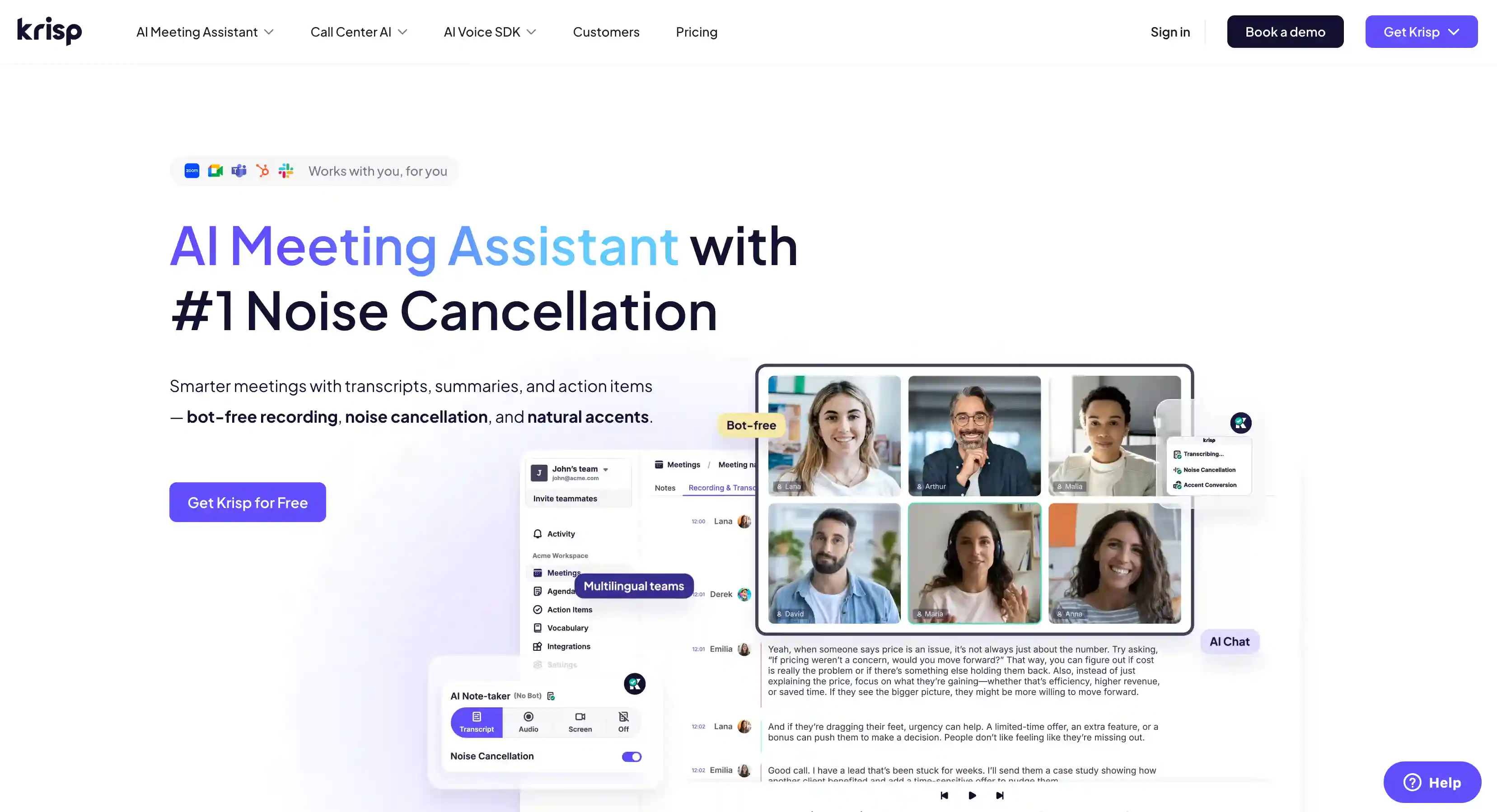
Krisp promises to end unproductive meetings as an AI meeting assistant with real-time noise cancellation. Since I'm a remote worker, the idea seems appealing — my meetings keep getting derailed by car alarms, street noise, kids, barking dogs, and countless other random sounds.
But while I'd happily pay for an app capable of reducing background noise, I don't Krisp is the right choice for me — or anyone, really.
To get the most value for my money, I've tested over 15 other platforms with noise suppression features, as well as other AI meeting assistants. And I think I've got the perfect setup for noise-free, productive meetings.
But first, I'll explain why I think you should find a Krisp alternative.
TL;DR
- Krisp can clean up audio, yet many users switch because of high CPU/RAM use, various bugs, and occasional missing transcripts/recordings.
- Krisp feels pricey for what you get, with limited transcription languages, limited accent conversion, a desktop-app requirement, and no built-in AI chat for querying past meetings.
- The best Krisp alternative is Bluedot for recording + transcription + summaries (without a visible bot) plus your meeting app’s built-in noise suppression (Zoom/Teams/Meet).
- For Windows users with RTX GPUs, NVIDIA Broadcast is a strong add-on for Noise Removal (and optional Room Echo Removal) before your audio hits Zoom/Teams/Meet.
- Fireflies and Claap can work as meeting assistants, be aware of certain trade-offs: Fireflies’ intrusive bot + aggressive sharing/marketing, and Claap’s higher cost + heavier feature set for many teams.
- A good headset can beat software noise tools. Our top picks are AirPods Max, Voyager 8200 UC, and Bose NC700, depending on your device and where you take video calls.
Why Do People Switch to a Krisp Alternative?
Here's what users don't like about Krisp:
- High Resource Usage: Its noise cancellation features require a lot of RAM and CPU usage, causing laptops to heat up and lag during video calls.
- Choppy and Robotic Audio: Some users report that their voice becomes choppy, muffled, or robotic to the listeners on the other end.
- The "Silence" Bug: If a user remains silent for a minute (e.g., listening to others), Krisp’s algorithm may increase sensitivity or compress sound. When the user speaks again, the audio can be distorted or cut off because the software doesn't adjust in time.
- Hardware Conflicts: Some users report that Krisp constantly switches input and output devices on its own or falsely detects issues with the physical microphone.
- Transcription Failures: The transcript simply fails to generate sometimes. When that happens, all the meeting data is lost, and you can't access it or try to regenerate.
- Missing Recordings: For some users, recorded meetings did not appear in their history afterwards, and there was no way of retrieving the lost recordings.
- Unhelpful Support: Users describe support interactions as disrespectful, with agents just pushing to close tickets without actually resolving the technical issues. Also, the support team routinely responds with generic AI messages instead of addressing specific problems.
- Slow Response to Billing Issues: Users have reported waiting over a week to resolve subscription issues, which negatively impacts their ability to work.
Read More: An Honest Krisp AI Review
Why I Personally Dislike Krisp
Even when the platform works, I just don't think it's good value for your money, especially compared to the best AI note takers on the market.
For example, online teachers who used the platform to clear up their audio for students now find it too expensive. It went up from around $40 per user per year to around $100 — and that's even with the annual discount.
Other AI meeting assistants provide better AI-generated meeting notes and transcriptions, while other hardware and software solutions do a better job of removing background noise.
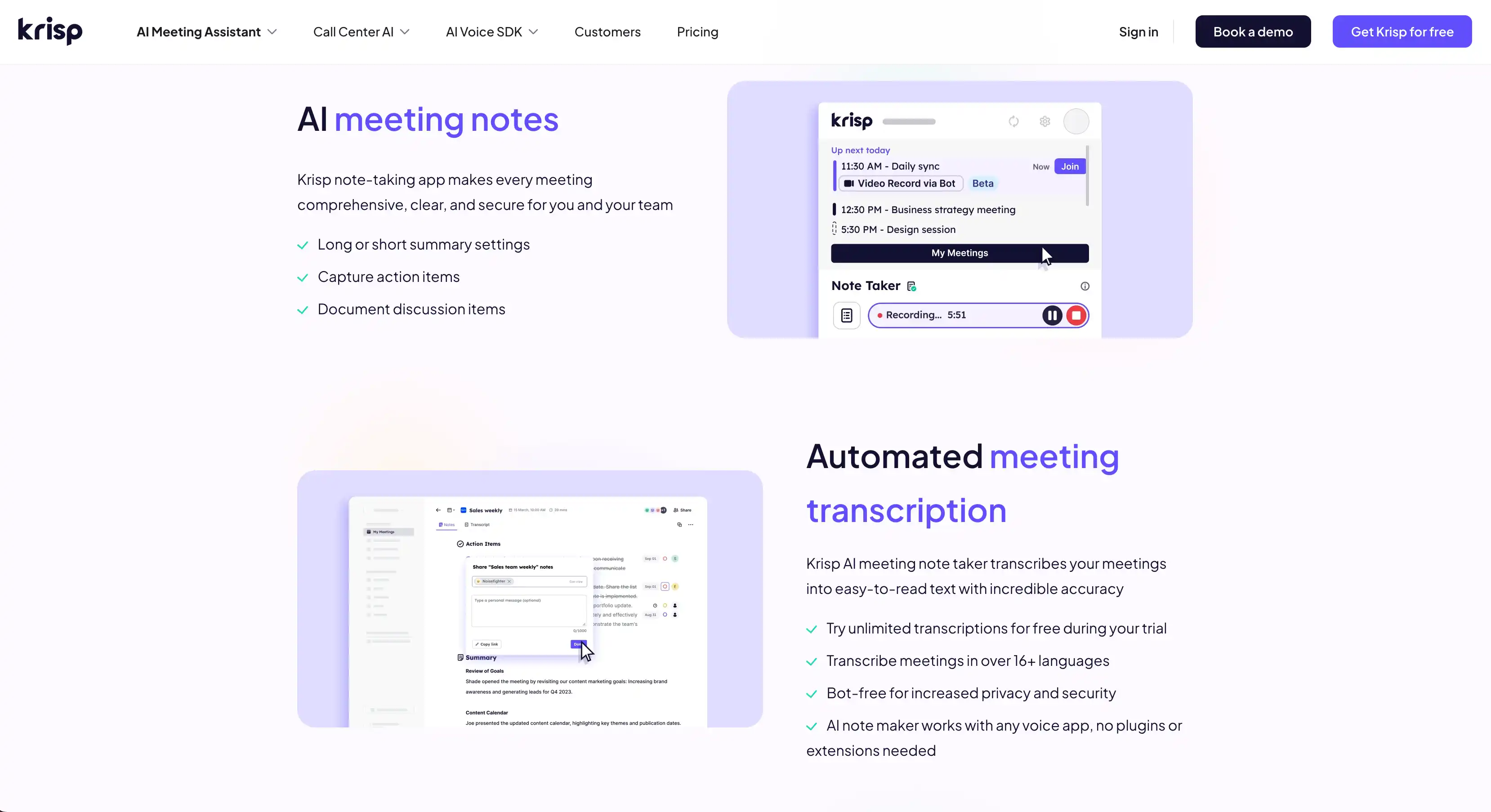
For example, Krisp only supports transcription in 16 languages — whereas competitors like Bluedot or Fireflies support 100+. Also, Krisp's speaker identification often failed for me, especially for meetings in noisy environments and with a lot of participants.
Also, its much-advertised "accent conversion" feature only works with 4 English accents: Indian, Filipino, African, and Latin American. So, it may be useful for customer support teams in call centers, but not for more diverse sales teams that work across the globe. Plus, its custom vocabulary for niche terms is limited to 750 words.
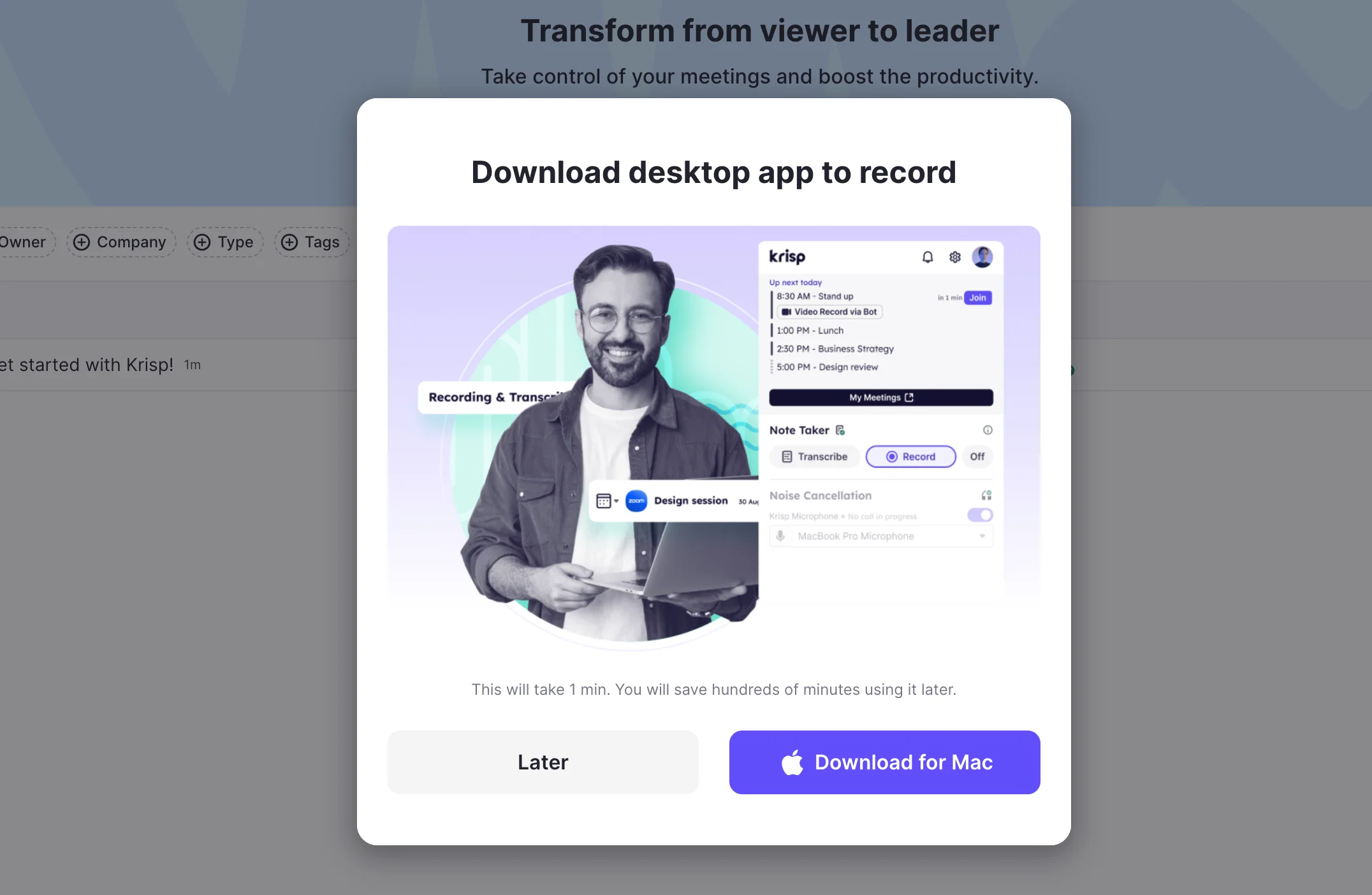
Crucially, you can't use Krisp to record meetings from your browser, at least not without a bot. You must download the desktop app, or the mobile one for in-person meetings.
Also, there's no built-in AI chat feature. Most other AI meeting assistants include a chatbot that can answer questions about your meetings using information across all your calls. For me, this is the easiest way to pull up specific info — and a central feature of AI note takers.
What Are the Top Krisp Alternatives?
For me, the best Krisp alternative is a combo — a better AI meeting assistant with another noise cancellation tool. In the long run, this is usually cheaper than paying for Krisp, and it works better.
Personally, I use Bluedot with the Apple AirPods Max — and sometimes NVIDIA Broadcast. However, you've got other Krisp AI alternatives, especially for noise cancellation. I'll go through the top ones below.
Here are my top AI meeting assistants:
- Bluedot
- Fireflies.ai
- Claap
In terms of software-based noise reduction, I like:
- Google Meet, Zoom, and Microsoft Teams noise suppression
- NVIDIA Broadcast
Long-term, I think a headset with a noise removal microphone is the best option because there's no RAM or CPU usage during calls. My top choices are:
- Apple AirPods Max
- Voyager 8200 UC
- Bose NC700
I'll dive into the pros and cons of each product below.
#1. Bluedot — Best Overall Krisp Alternative for AI Meeting Assistants
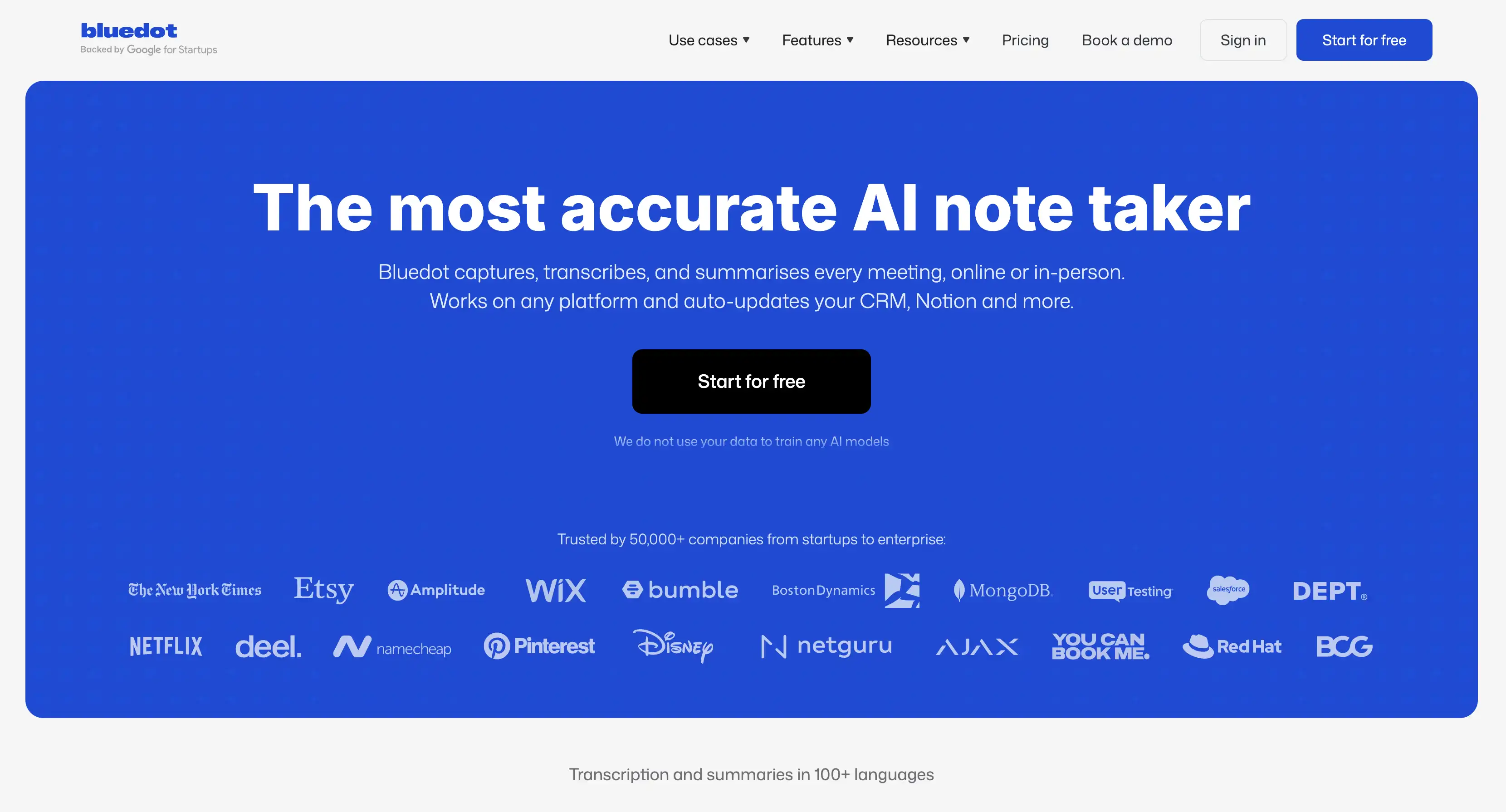
Bluedot is a browser-based AI meeting assistant that records, transcribes, and summarizes calls without a bot joining the meeting and making things awkward.
For me, Bluedot is the best Krisp alternative because it doesn't hog my CPU and RAM, and there's no audio lag. Also, while Krisp forces me to download a desktop app, Bluedot gives me tons of options — including a lightweight Chrome extension for bot-free recording.
Additionally, Bluedot supports over 100 languages for transcription, while Krisp is limited to 16, making Bluedot far superior for global teams.
Bluedot vs. Krisp — Key Features Compared
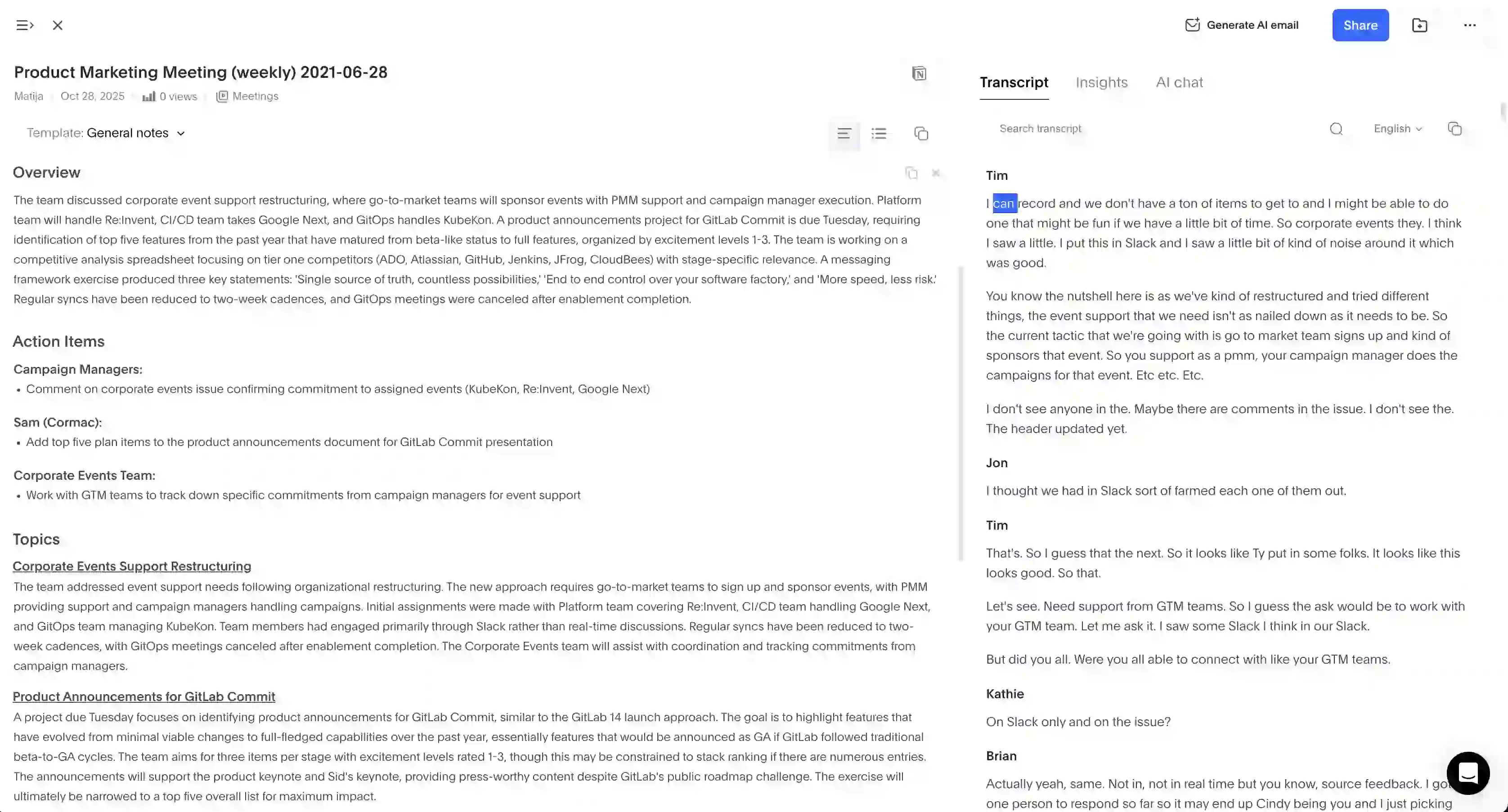
While Bluedot doesn't have any dedicated noise cancellation features, it works much better as an AI meeting assistant.
Besides the ability to record conversations bot-free in over 100 languages, I'm really satisfied with its transcription accuracy — and the relevant, useful AI meeting notes I get after each call. In fact, these work even in noisy environments, with multiple meeting participants.
Personally, I use Bluedot from my browser and activate the built-in noise cancellation on each video call platform — Google Meet, Microsoft Teams, and Zoom. Instead of AI noise cancellation via Krisp microphone, I also double down by using headphones with echo removal and bidirectional noise cancellation.
The result is much better audio quality without any of the downsides — and an audio recording without the bugs that sometimes happen when you record via Krisp. Besides audio clarity, I also appreciate that my recordings haven't gone missing with Bluedot.
Bluedot Pricing
Here's a quick overview of Bluedot's different subscription tiers:
Bluedot Pros and Cons
#2. Fireflies.ai — Great AI Alternative for Sales Analytics
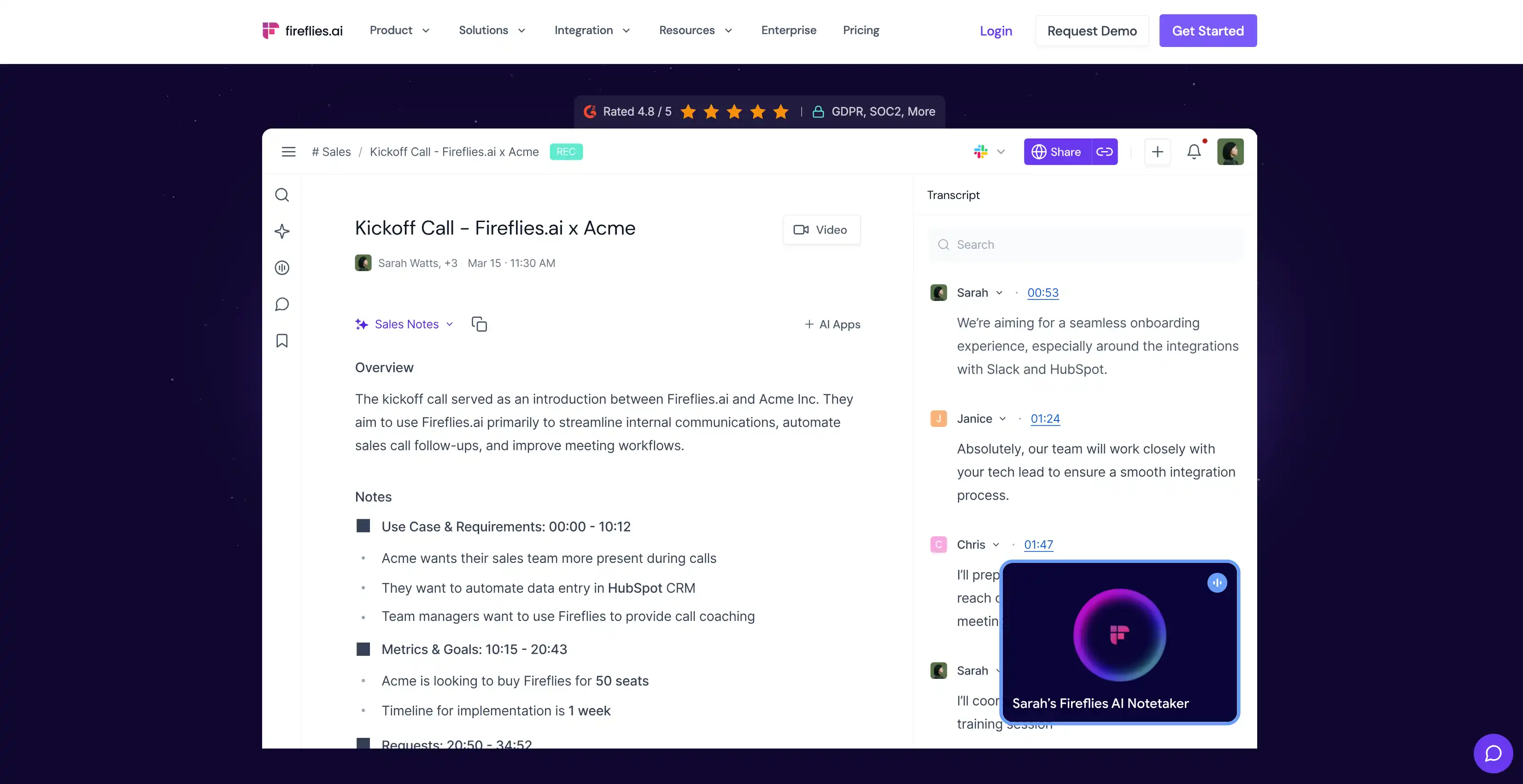
Fireflies.ai is another cloud-based meeting assistant that automatically joins, records, transcribes, and summarizes your meetings.
While it's not my first choice, I still prefer Fireflies over Krisp because it processes meeting data in the cloud. As a result, Fireflies doesn't hog up my computer's local resources, and I don't need a powerful computer to run it.
Read More: In-Depth Fireflies AI Review
Fireflies vs. Krisp — Key Features Compared
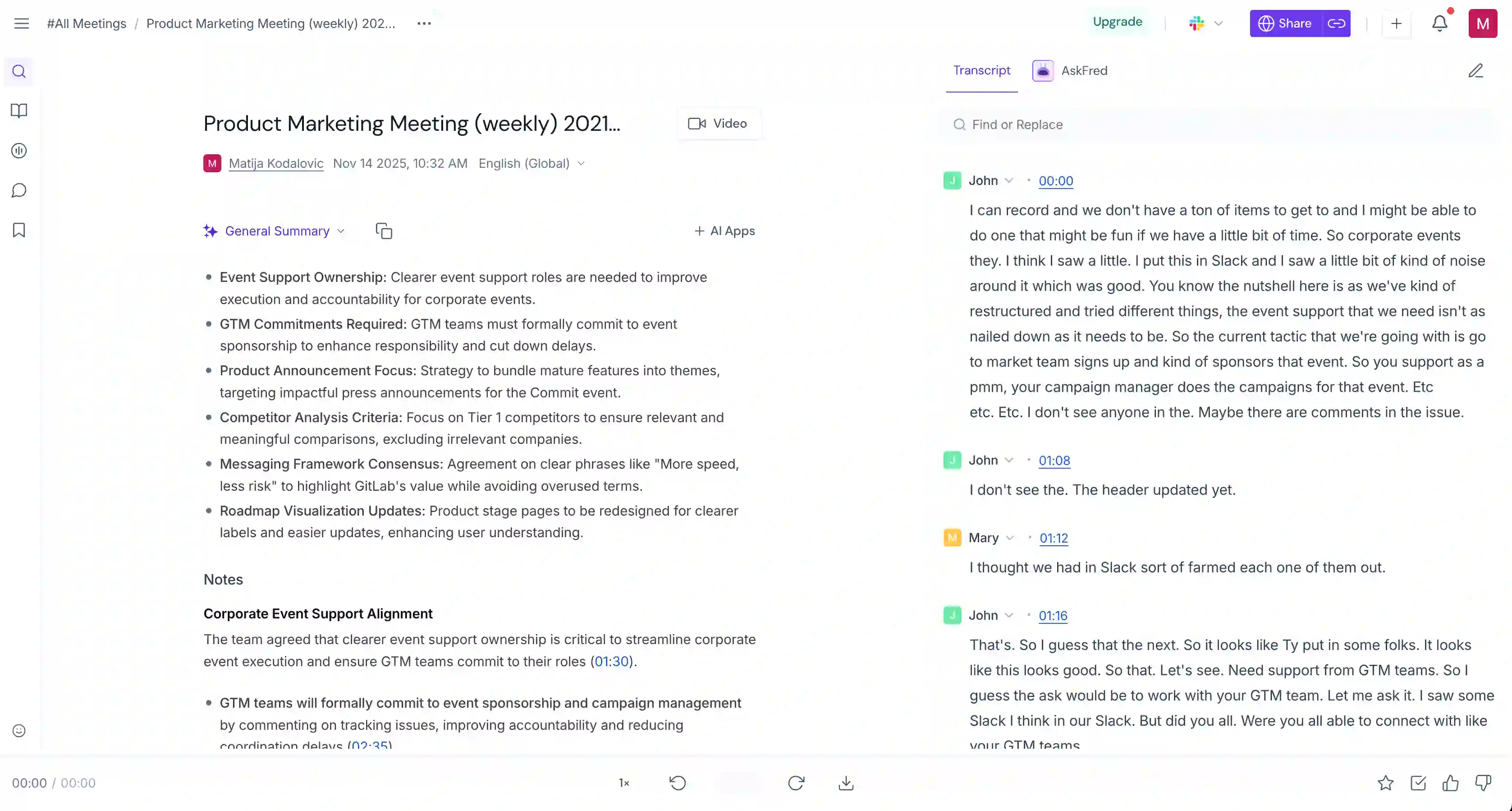
For sales teams, I think Fireflies is a decent choice because of its advanced analytics features, including sentiment analysis and speaker talk-time — though you also can get the latter on other platforms, like Bluedot.
With Fireflies' sentiment analysis, you get:
- Sentiment Categorization: The AI automatically scans the conversation to identify specific keywords and phrases, categorizing them into positive, negative, or neutral sentiments.
- Sentiment Filters: Users can filter the text to display only sections with a specific emotional disposition. For example, a sales manager or representative can filter for "negative" sentiment to instantly jump to objections, complaints, or moments of friction, without reading the entire transcript.
There's also "AskFred," an AI assistant that answers questions about what happened in the meeting — a feature completely absent in Krisp.
While these features are useful for customer-facing teams, Fireflies doesn't rank at the top of my list because of its aggressive marketing tactics:
- Meeting transcripts and recordings typically aren’t viewable unless the recipient registers for a Fireflies account.
- By default, Fireflies emails summaries to everyone on the invite list, including external clients. This can push outsiders to sign up just to view the content and helps the product spread.
- Some users report that Fireflies sent marketing emails to all participants after a meeting, which they considered inappropriate in professional settings.
- The Fireflies bot is set to join all upcoming calendar meetings by default once an account is created. Reports claim it can join meetings and record even when the installer isn’t present.
- Users and admins report that disconnecting the integration doesn’t always stop the bot. Blocking it may require admin-level action, especially after one user enables it across an organization.
Fireflies Pricing
Here's how much different Fireflies subscriptions cost:
Read More: Top 3 Fireflies AI Alternatives
Fireflies Pros and Cons
#3. Claap — Decent Audio Recording for Revenue Teams
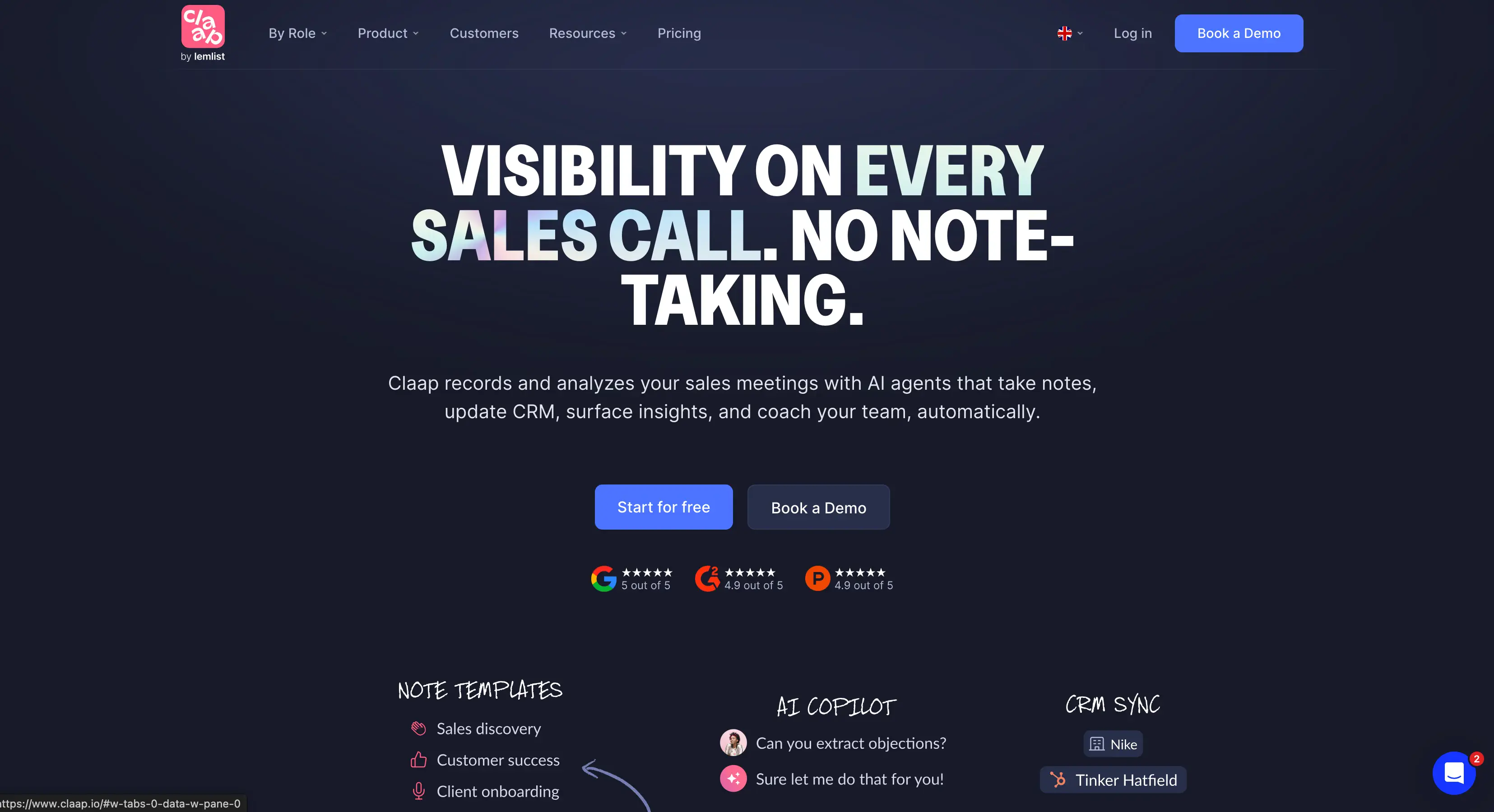
Claap is an AI meeting assistant designed to help call centers and sales teams shorten feedback loops and reduce live meetings.
If you're looking for a tool that provides transcriptions and meeting notes along with visual collaboration and sales intelligence, Claap might be the right choice. Why didn't I rate it higher, then?
For most teams, Claap is going to be too complex and expensive. It's almost double the price of Krisp even on lower tiers, and platforms like Bluedot can offer a similar set of features — in a simpler and more affordable package.
Claap vs. Krisp — Advanced Features Compared
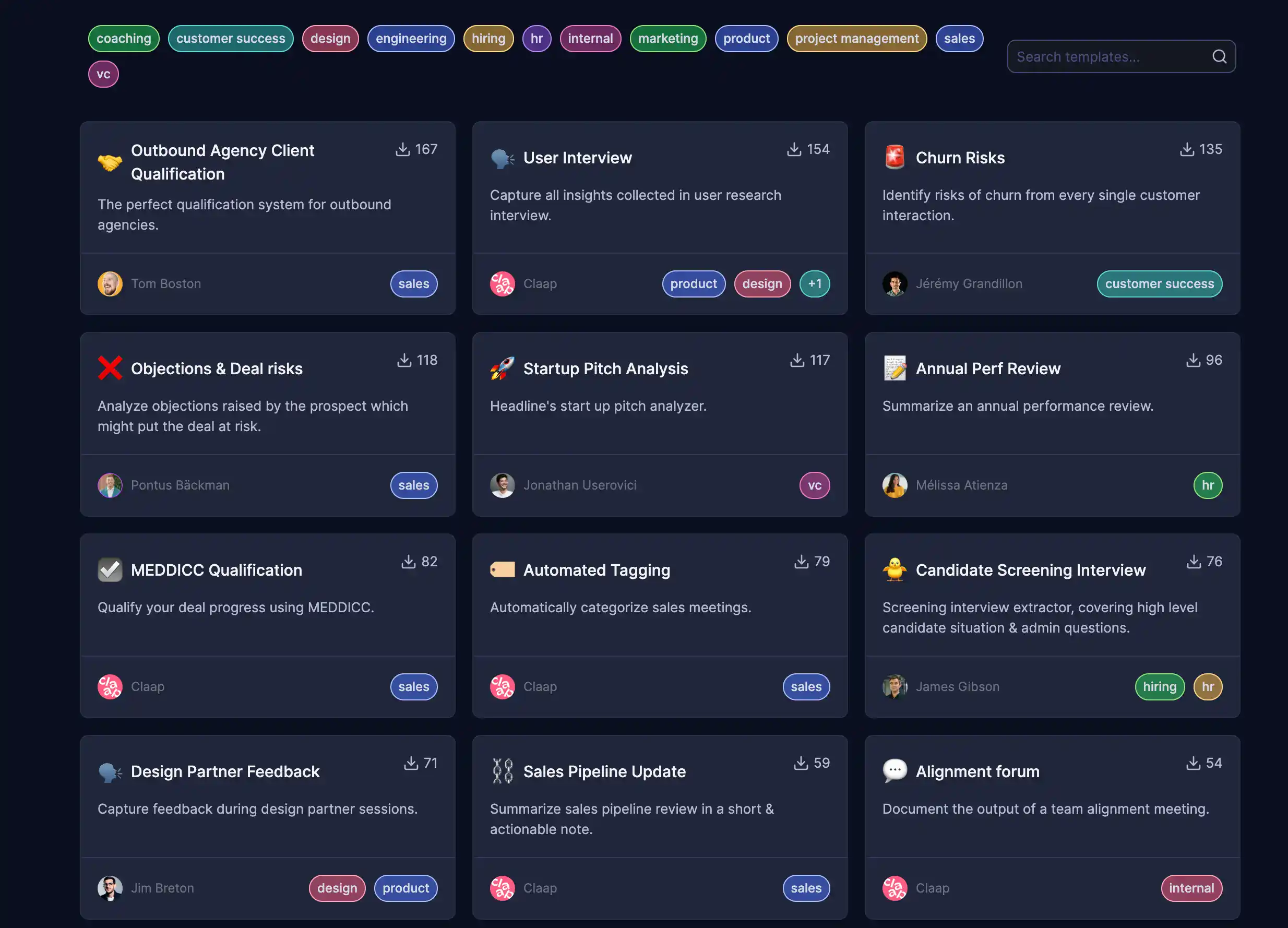
Of all the Krisp alternatives I've reviewed, Claap is probably the most expensive choice for teams.
However, it also provides a lot of sales intelligence, as well as a robust integration with lemlist — the outreach scaling tool that's owned by the same company.
In terms of AI capabilities, Claap offers transcription in 99 languages and AI templates for sales methodologies (like BANT or MEDDIC) that integrate directly with CRMs such as HubSpot and Salesforce. Krisp is far more limited, supporting transcription in only about 16 languages and with practically zero intelligence features.
While Claap avoids the specific hardware drains associated with Krisp, it has its own technical downsides. Users report that video processing can be slow for longer recordings and that the mobile experience is limited compared to the desktop version.
Objectively, Claap is the superior choice for teams that need visual collaboration, screen recording, and deep sales intelligence, but it's significantly more expensive and complex than Krisp. If you're solely seeking a transcription aid or something for individual use, Claap is definitely overkill.
Claap Pricing
Wondering how much Claap's different tiers cost? Brace yourself, because it's a heavy investment for smaller teams and individual users. Here's an overview of each subscription:
Claap Pros and Cons
#4. Unlimited Noise Cancellation on Video Conferencing Platforms
For me, one of the best ways to improve the audio quality of an online call is to just turn on the built-in noise filters on video conferencing apps.
Microsoft Teams, Google Meet, and Zoom all have noise suppression features that can help you reduce ambient sounds and improve audio quality. I'll show you how to use each one.
#4.1. Noise Cancellation in Zoom

Here's how you can improve audio quality in Zoom's desktop app via the built-in noise filter:
- Open the Zoom desktop app and sign in.
- Click your profile picture (top-right).
- Select Settings.
- Click Audio (left side).
- Under Microphone modes, select Noise removal (default).
- Then find Background noise suppression (a dropdown under that section).
- Choose a level:
- Auto (recommended for most people)
- Low (minimal filtering)
- Medium (stronger reduction for common noise)
After you turn on the filter, I recommend speaking for a few seconds and using the mic level indicator to confirm your voice is still clear.
If you're attending a meeting via the Zoom mobile app, these are the steps to enable noise cancellation:
- Join the meeting and connect to audio (Wi-Fi or cellular).
- Tap More → Audio settings.
- Under Microphone modes, select Noise removal (default).
- Finally, tap Done.
#4.2. Noise Cancellation in Microsoft Teams
Here are all the steps for removing background noise in the Microsoft Teams desktop app:
- Open Microsoft Teams.
- Select Settings and more (⋯) near your profile picture.
- Click Settings.
- Go to Devices.
- Find Noise suppression.
- Choose a level:
- Auto (default)
- Low
- High
- Off
- Make a quick test call (or use a meeting) and speak while typing to confirm your voice stays clear.
If you're not sure which noise reduction level to use, here are some guidelines from Microsoft:
- Auto: best for most audio and video calls.
- High: best for loud spaces (traffic, fans, keyboard).
- Voice isolation: best when other people are talking near you, and you want only your voice to pass through (may require a voice profile in some setups).
- Off: use this if you already have noise reduction in a headset/app, and Teams audio sounds clipped.
Also, here's how you turn on noise cancellation in the Microsoft Teams mobile app:
- Open Teams.
- Tap your profile picture.
- Tap Settings.
- Tap Calling.
- Tap Noise suppression.
- Choose Auto / Low / High / Off.
#4.3. Noise Cancellation in Google Meet
Here's how to enable real-time noise cancellation on Google Meet and eliminate sudden noises:
- Go to Google Meet in your browser and open the meeting.
- Next, click More options (⋮) in the top-right of the pre-join screen.
- Then select Settings.
- After that, click Audio.
- Turn on Noise cancellation.
- Click Join now.
For noise suppression on the Google Meet mobile app, follow these steps:
- Join the meeting in the Google Meet app.
- Next, tap the screen, then tap More (⋮).
- Then tap Settings.
- Tap Noise cancellation to turn it on.
In my experience, Google Meet's built-in noise cancellation doesn't remove other voices, like people talking nearby or conversations from a TV. It mostly works on non-speech sounds. Also, the noise cancellation doesn't work on audio that's captured when you share your screen.
#5. NVIDIA Broadcast — Great for Owners of NVIDIA RTX Cards
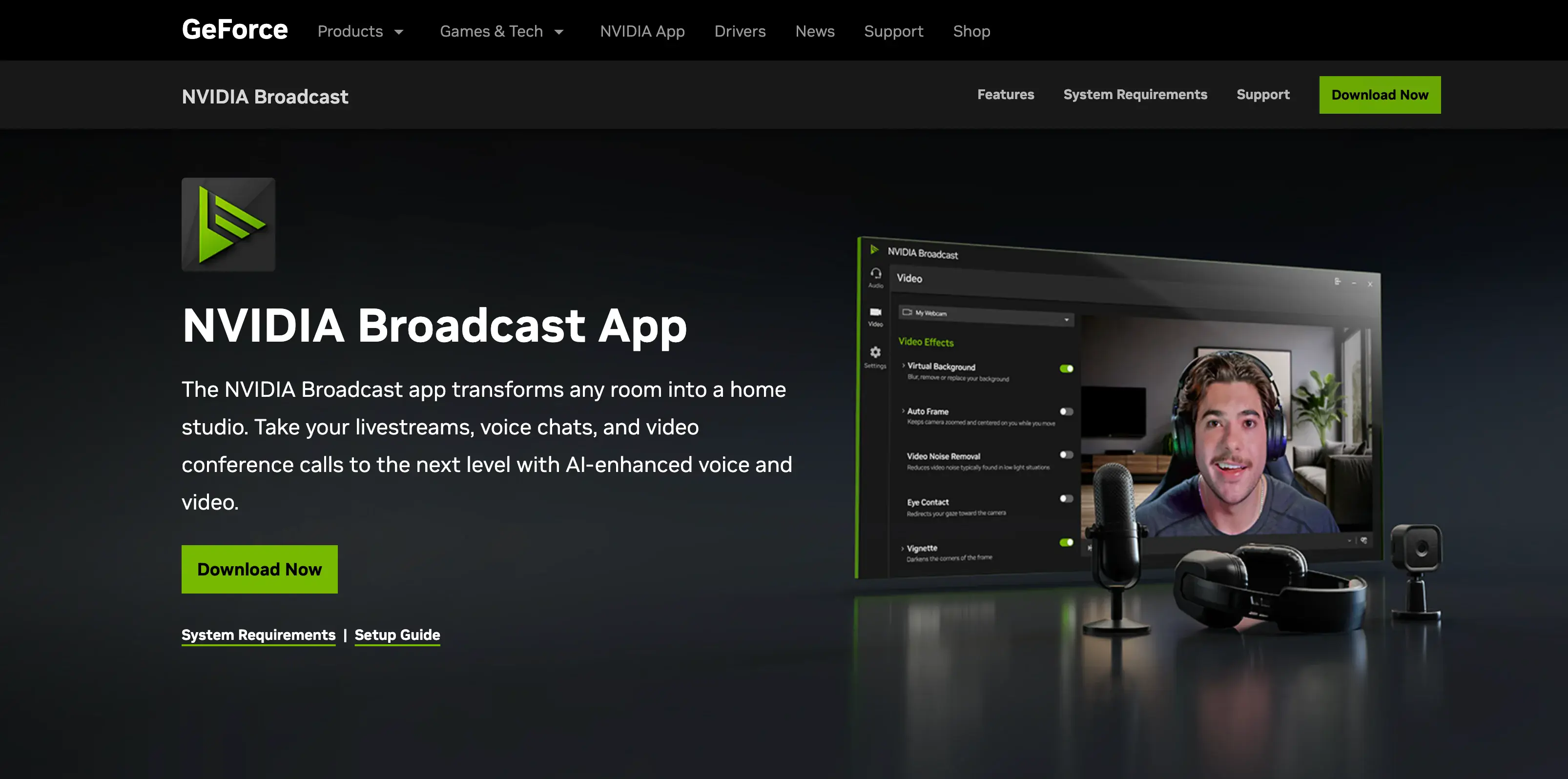
NVIDIA Broadcast is a free app that uses AI to enhance audio and video quality for live streaming, video conferencing, and voice chats. It essentially transforms your standard webcam and microphone into "smart" devices by filtering out unwanted noise and enhancing visual clarity in real-time.
While you can also use Broadcast to create virtual backgrounds during online meetings, that's something most video conferencing apps can do themselves nowadays — so I mostly use it to improve audio quality.
I've seen tons of content creators and streamers use NVIDIA Broadcast, but so can remote workers — provided you have the right GPU. Broadcast does not work on GeForce GTX cards because it relies on RTX Tensor Cores. So, you'll need an NVIDIA RTX card for this noise reduction method. Also, it only works on Windows.
Once you're sure you've got the right setup, download Broadcast and simply:
- In NVIDIA Broadcast, go to the Microphone section (the area where you pick your mic input and effects).
- Select your real microphone as the input source inside the Broadcast app (your headset mic / USB mic).
- Turn on “Noise Removal” for the microphone (this is the background noise filter).
- Optionally, turn on “Room Echo Removal” if your room sounds echoey.
- Speak for 10–15 seconds and listen for clarity.
Once this is done, NVIDIA Broadcast will be set up as your virtual microphone in Windows. To use it with any video conferencing app, just follow these steps:
- Open your meeting app’s audio settings.
- Set Microphone to “Microphone (NVIDIA Broadcast)”.
- If you want cleaned incoming audio too, set your Speaker to “Speakers (NVIDIA Broadcast)” (then enable speaker effects in Broadcast).
Crucially, don't forget to turn off (or lower) noise suppression in the meeting app if it has its own filter. And if you have a headset with hardware noise cancellation, disable it too. Otherwise, you'll process the audio signal twice and potentially scramble it.
#6. Apple AirPods Max — Great for Apple Users
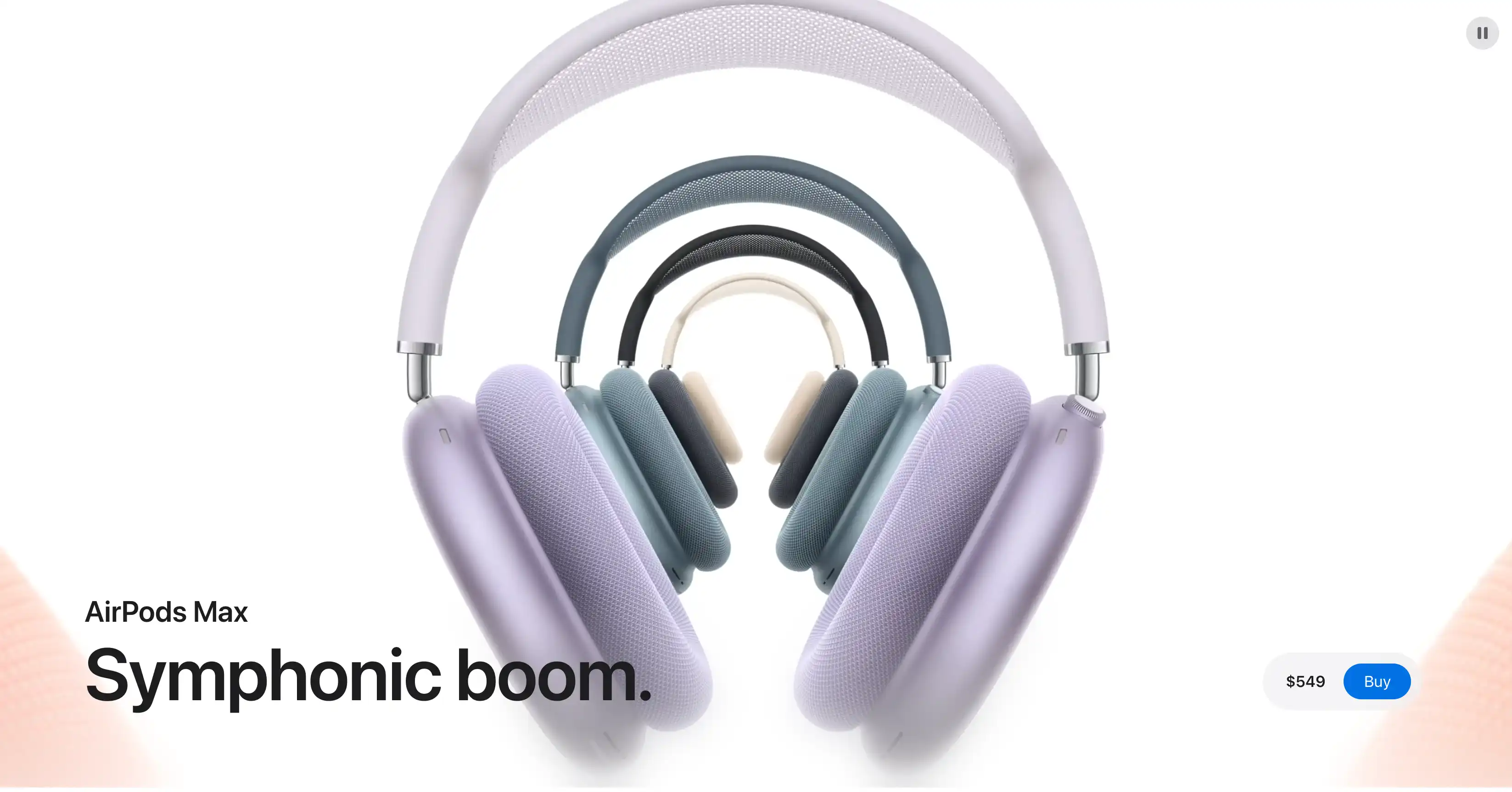
When it comes to hardware-based Krisp AI alternatives for noise cancellation, you can't do much better than the Apple AirPods Max. They're a pricey choice, and they won't make much sense if you're not an Apple user because of the ecosystem perks.
Also, obviously, you'll still need an AI meeting assistant like Bluedot for transcription and AI meeting summaries. However, the call quality on these is superb. If you don't mind spending $549 for removing noise and voice clarity, the AirPods Max give you superb bi-directional noise cancellation.
As Apple itself says, outward mics detect external sound that gets countered before you hear it, while the inward mic listens for unwanted sound inside the ear and counters that too.
However, compared with the Bose NC700, AirPods Max usually deliver slightly less consistent voice isolation in very loud spots. And compared with Voyager 8200 UC, they trade office-focused mic tuning for better Apple integration and premium audio. Therefore, pick them if you value comfort, music, and Apple pairing more than strict work-headset reliability.
#7. Voyager 8200 UC — Great for Office Environments
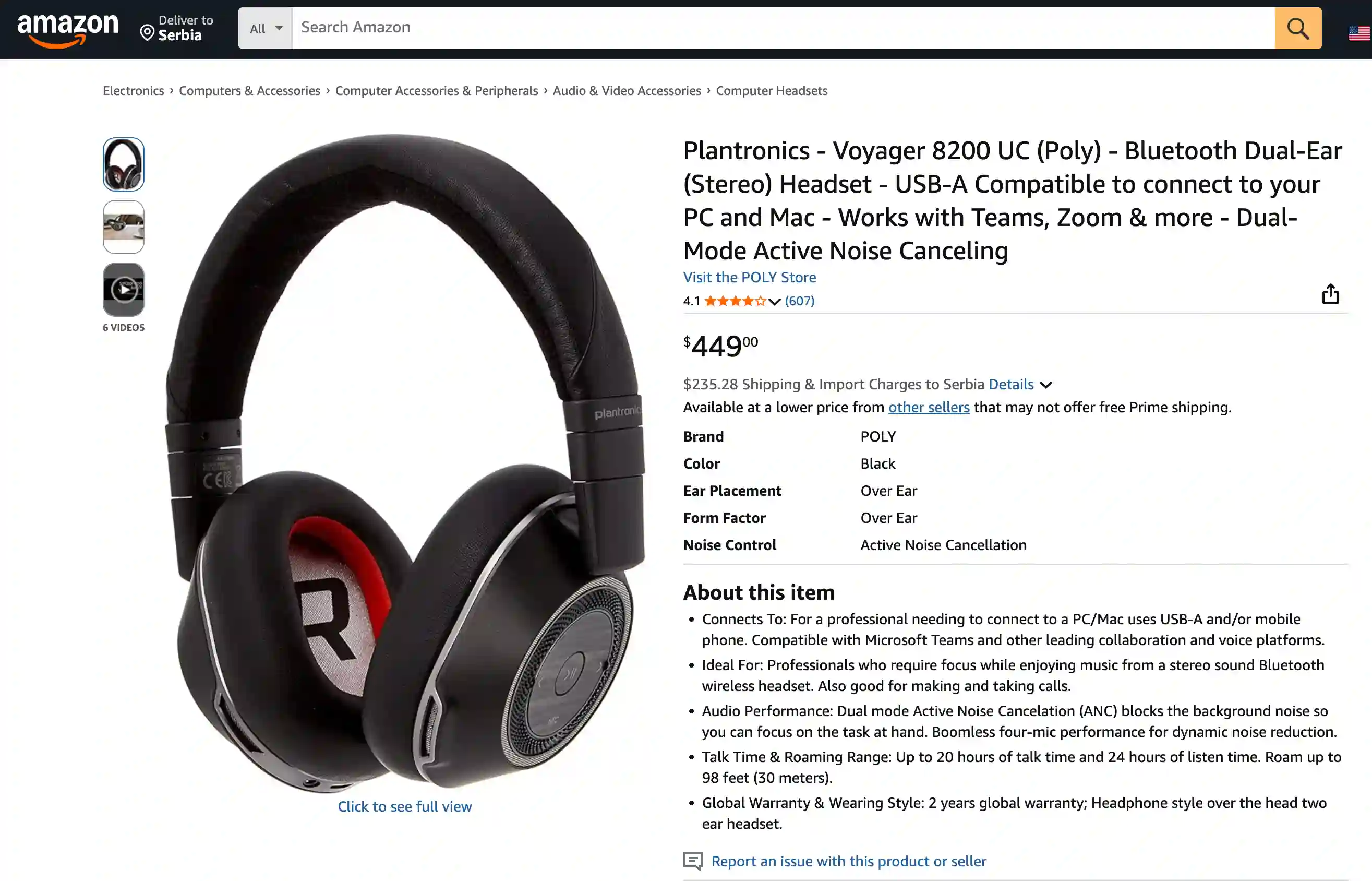
Voyager 8200 UC is the most meeting-focused choice of the three headphones I've tried. First, its boomless four-mic array uses DSP to optimize your voice while cutting background noise, and Acoustic Fence-style tuning helps keep nearby talkers out.
Also, it typically ships with a USB Bluetooth adapter, which makes laptop pairing steadier than standard Bluetooth. However, this largely depends on where you buy it — so I can't vouch for that.
However, its ANC is more about office distractions than deep low-frequency rumble, so the Bose NC700 can feel quieter on trains or in similar areas. Still, I appreciate that the Voyager headset is light for long video calls, and the onboard mute and call controls are easy to reach.
Of the headphones-based Krisp AI alternatives, it's the one I'd invest in if I was buying headphones only for meetings and office work. However, compared with AirPods Max, it is less “luxury” in materials. But, it's also around $100 cheaper than the AirPods Max.
#8. Bose NC700 — Great for Loud Outdoor Environments
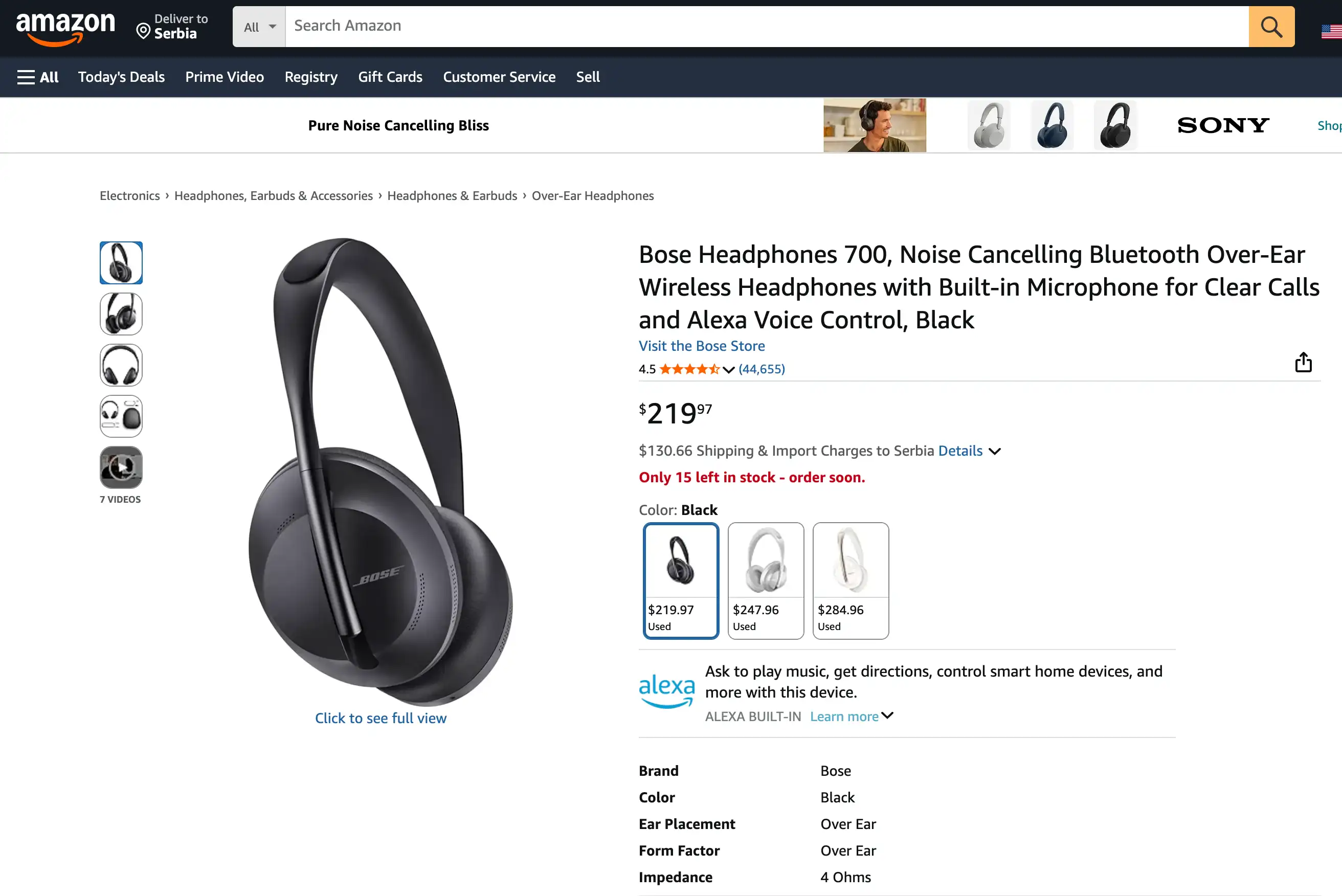
Bose NC700 is the best pick here when you need your voice to cut through a lot of outdoor noise. First, the design uses an eight-microphone system with beamforming and a separate rejection array, so speech stays clear while loud sounds get suppressed. Also, you get 11 levels of ANC, which can calm open offices or street noise without making you feel sealed off.
Now, this is also the most affordable pair of noise-cancellation headphones I've tried. And that's because this isn't the latest model from Bose — those will set you back as much as the Voyager model.
Still, compared with AirPods Max, Bose tends to keep call clarity steadier in cafés and windy walks. Though it may require more fiddling than the Voyager 8200 UC on some PCs, it often sounds cleaner once connected — at least in really noisy spaces.
Frequently Asked Questions
Here are answers to some of the most often-asked questions about Krisp AI alternatives online.
What are the alternatives to Krisp AI?
Finding a replacement for Krisp depends on your specific hardware and goals. First, NVIDIA Broadcast is a powerful option for PC users with RTX graphics cards. It removes background noise effectively and is completely free.
However, Mac users might prefer Utterly because it runs efficiently on macOS. Mac users who also want AI notes often look at Granola, and our roundup of Granola competitors covers the bot-free options that also record video. Additionally, teams often choose meeting assistants such as Bluedot or Fireflies.ai. These tools record audio and video calls and provide automated summaries. Consequently, they help you manage notes without any manual effort.
Is Neep better than Krisp?
Need processes 48kHz audio, which provides higher sound quality than Krisp’s 32kHz limit, and it also works on Linux — unlike Krisp. However, Need is far less user-friendly, so you may want to stick with Krisp if those are your only two choices and you're not particularly audio-savvy.
Can you get Krisp for free?
No. You can sign up for a free trial with full access to all paid features, but it only lasts 7 days. After that, there's no free version. You have to sign up for a paid subscription.